How to Scan to PDF: Step-by-Step for Home and Office

To scan to PDF, use a phone for about 1–10 pages, a multifunction printer with an automatic document feeder for longer packets, or built-in Scan tools on Windows and Mac when paper is already at your desk. Do it badly and the file can come out crooked, oversized, unreadable, or rejected by schools, employers, courts, and tax portals. This guide gives the fastest steps for phones, Windows PCs, Macs, and office printers, plus settings and fixes that help you avoid re-scanning.
Which scan-to-PDF method should you use?
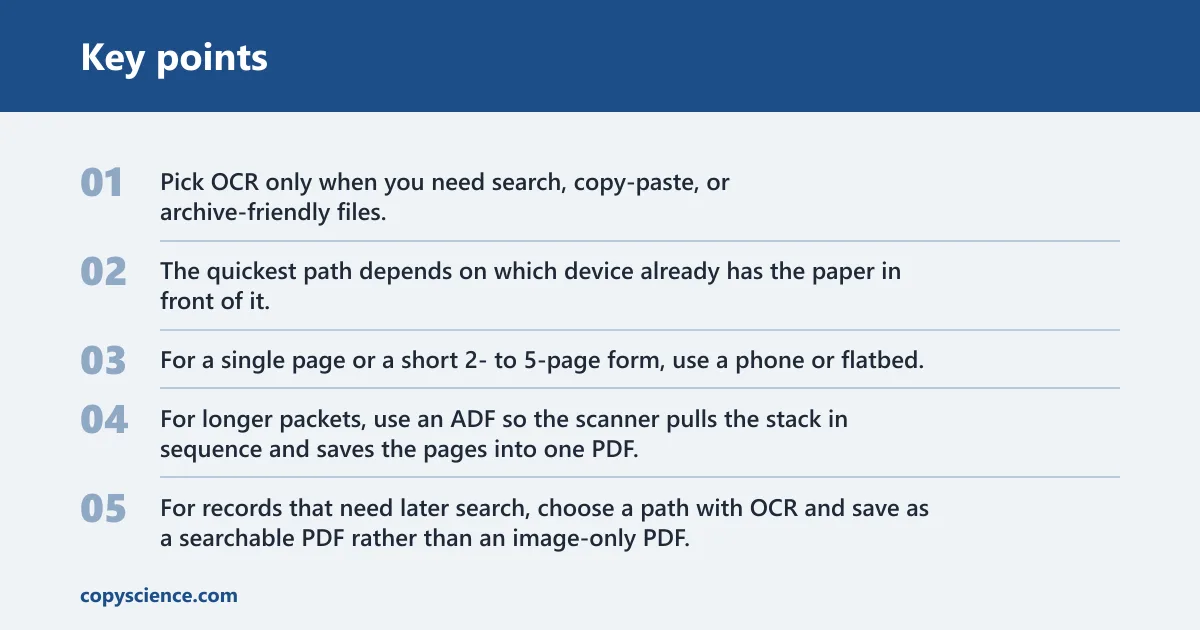
Use a phone for a fast PDF from a few pages, a computer when a USB scanner is already connected, and a multifunction printer with an ADF when you have office paperwork or duplex stacks. Pick OCR only when you need search, copy-paste, or archive-friendly files.
Choose by device
The quickest path depends on which device already has the paper in front of it. If the document is on your desk and your phone is in your hand, a built-in mobile document scanner is usually faster than waking a printer, loading paper, and opening desktop software.
If a flatbed or document feeder is already connected to a Windows PC or Mac, scanning straight to PDF skips the extra step of converting image files later. If the job starts at an office multifunction printer, scanning from the printer panel or the manufacturer app usually handles multi-page PDFs better than a phone.
Choose by job
For a single page or a short 2- to 5-page form, use a phone or flatbed. For longer packets, use an ADF so the scanner pulls the stack in sequence and saves the pages into one PDF. For records that need later search, choose a path with OCR and save as a searchable PDF rather than an image-only PDF.
OCR matters most for invoices, contracts, forms, receipts, and archive folders. It matters less for a handwritten note that no one needs to search later.
Choose by setup
Built-in tools are the low-friction option. They work well for occasional scans and basic PDFs. Manufacturer apps are often better when the printer has wireless scanning features, panel presets, or duplex ADF controls.
Free desktop software helps when built-in tools lack scanner selection, PDF merging, or OCR. Print Copy Fix says Advanced Scan to PDF saves documents straight to a PDF file without ads or activation, and it says the tool is useful for combining several scanned pages into one PDF file. Sosej lists Scan to PDF 2.50 as a trial program with a file size of about 2.1 MB, and says it works with TWAIN and WIA scanners.
Scan method decision table
What the table compares
This table maps the common home and office paths to the jobs they fit best. It compares setup effort, whether multi-page PDFs are easy, whether OCR is built in or likely to need another app, whether the method works offline, and the failure points that lead to most rescans.
How to read the tradeoffs
Low setup effort means the tool is already on the device or easy to open. OCR varies widely. Built-in mobile tools often create clean PDFs, but searchable text may depend on the app or later processing. Offline use matters in offices with restricted networks, and failure points matter because they often decide whether the job takes two minutes or twenty.
| Method | Best use case | Setup effort | Multi-page support | OCR | Offline use | Common failure points |
|---|---|---|---|---|---|---|
| Windows built-in tools | USB scanner or MFP already connected; quick desk scans | Low if scanner is detected | Good, especially with ADF-capable devices | Limited or separate from basic scan flow | Usually yes | Scanner not visible in Windows; missing driver; pages saved as JPG instead of PDF; multi-page option hidden |
| Mac built-in tools | Mac with supported scanner; home or office documents | Low | Good; combine pages through Preview or scanner workflow | Possible through macOS document features, but not every path exposes searchable PDF the same way | Usually yes | Scanner not listed; scan saved as image first; wrong paper size; page order issues when combining |
| iPhone built-in scanning | 1-10 pages, receipts, forms, travel paperwork | Low | Good for short sets | Varies by app and later export path | Yes for capture and PDF save | Shadows, glare, edge crop errors, curled paper, wrong page order before saving |
| Android built-in scanning | Quick phone capture; home paperwork | Low | Good for short sets | Varies by device app and export method | Usually yes | Poor edge detection, aggressive contrast, page export as image, inconsistent OCR support |
| HP or Brother printer workflows | Office packets, signed forms, multi-page batches | Medium | Very good with ADF | Depends on model and app | Panel scan may be local; app scan often works offline on local network | ADF double-feeds, duplex order reversed, destination mis-set, scan profile saved to image format |
| Free desktop apps | Windows jobs needing direct PDF, merging, scanner choice, or better controls | Medium | Good to very good | Varies; some focus on PDF creation rather than OCR | Usually yes | Requires TWAIN or WIA support; trial limits; scanner selection confusion |
How do you scan to PDF on Windows?
On Windows, the fastest path is a built-in scan tool if the scanner already appears in the system. If it does not, fix detection first, because the software cannot use a scanner Windows cannot see. Use free desktop scan software when you need better PDF merging or TWAIN support.
Built-in Windows tools for quick PDF scans
- Check scanner visibility. Open Windows settings or Device Manager and confirm the scanner or multifunction printer appears. Print Copy Fix says a scanner must be visible in Windows before the software works, so detection comes before any scan settings.
- Open the scan tool. Use the built-in Windows scan path available on the PC, then choose the scanner from the device list. If more than one device appears, pick the exact scanner entry rather than a generic printer queue.
- Select PDF output. Set the file type to PDF before scanning. If the output defaults to JPG or PNG, look for a file type, save as, or format field before pressing Scan.
- Choose source and size. Pick Flatbed for single pages or ADF for stacked pages. Match paper size to the original so letter, legal, A4, or receipt pages do not crop oddly.
- Set image basics. Use grayscale for most text documents, color for IDs, stamps, or forms with color coding, and a moderate resolution suitable for readable text. Higher settings create larger files and slow email submission.
- Scan and review. Check the preview for skew, clipped edges, and blank back pages before saving. If the first page is wrong, fix settings now instead of finishing a whole packet badly.
When TWAIN or WIA drivers are required
Windows scanning can fail even when the cable is connected. The missing piece is often the driver layer. The same source says Scan to PDF works with TWAIN and WIA scanners, which reflects a broader point: many desktop tools depend on one of those scanner interfaces to communicate properly.
If a scanner is not detected, install the full driver package from the manufacturer rather than relying only on a print driver. Office scanners often need a dedicated scan driver for ADF controls, duplex scanning, and proper page feeding. A generic driver may let the device print while scan features stay missing.
Free desktop apps when built-in tools fall short
Use a free or trial desktop app when the Windows tool cannot combine pages cleanly, cannot keep page order, or does not expose scanner features. The same source describes Advanced Scan to PDF as a direct PDF tool, and Sosej lists Scan to PDF 2.50 as a TWAIN/WIA-compatible trial app.
Adobe Acrobat Reader is also named by WPS as one of three tools for scanning multiple pages into one PDF. If the job is simple, start with the built-in tool. If the job involves repeated office packets, duplex ADF scans, or direct searchable PDFs, a desktop app can be worth the extra install.
How do you scan to PDF on a Mac?
On a Mac, use the built-in scan workflow when the scanner already appears in system settings or Image Capture. Save directly as PDF when possible, then combine or reorder pages in Preview if needed. Add OCR only when the file needs search, copying, or archive retrieval later.
Built-in Mac scan workflow
- Confirm scanner appears. Check that the scanner or multifunction printer is listed on the Mac. If it is missing, add the device again or install the manufacturer driver package for scanning features.
- Open the scan interface. Use the Mac’s built-in scanning path and select the document source. Flatbed suits careful single-page work; ADF suits packets and office forms.
- Choose PDF and paper size. Set the format to PDF and match the original page size. This avoids clipped edges and odd blank margins that happen when legal pages are scanned as letter.
- Adjust orientation and color. Use portrait or horizontal orientation correctly, and choose color, grayscale, or black and white based on the document. Text-heavy forms usually compress better in grayscale.
- Review before saving. Zoom in on names, small numbers, signatures, and stamps. Save only after the preview confirms the page is square and readable.
Saving as PDF and combining pages
If the Mac path creates separate pages first, combine them in Preview in the correct order before sending. Drag thumbnails to reorder pages, delete blanks, and resave as one PDF. That is often simpler than rescanning.
Say your ADF flips two pages in the middle of a 14-page packet. Fix the order in thumbnails first. Re-scanning the whole stack wastes time and risks adding a second error.
When to use OCR on macOS
Use OCR when the PDF needs to be searchable or text-selectable. Without OCR, the file is only a set of page images inside a PDF wrapper. That is fine for signatures and simple submission, but poor for archive folders where someone later needs to search by invoice number or name.
How do you scan to PDF from an iPhone or Android phone?
Use the built-in phone document scanner for short jobs, travel forms, receipts, and anything that needs a PDF fast. These tools usually auto-crop and correct perspective, but they still need flat paper and even light. Save as PDF before sharing so page order stays intact.
iPhone built-in document scanning
- Open document scan. Start the built-in document scanner from a notes or files workflow on the iPhone. Hold the phone above the page and let the edge detection frame the paper.
- Capture under even light. Use bright, indirect light and keep the page flat. If shadows cross the text, move the light source or the phone before taking the shot.
- Review each page. Check the crop, rotation, and readability after every capture. It is faster to retake one page now than to find a cut-off signature after sending.
- Add pages before saving. Keep scanning until the set is complete, then save the batch as one PDF. Reorder pages if the app allows it before export.
- Share the PDF file. Export or save as PDF, then send by email, messaging, or file storage. Do not share page images one by one unless the recipient asked for images.
Android built-in document scanning
- Use the phone scanner. Open the document-scan feature built into the device or its file or camera tools. Look for document mode rather than standard photo mode.
- Let auto-crop work. Give the page a plain background with visible corners so auto-crop and perspective correction can detect edges correctly. Manual crop is safer when the paper is wrinkled or dark.
- Pick cleanup options. Use straighten, shadow removal, or contrast carefully. Too much contrast can erase light pencil notes or faint stamps.
- Export as one PDF. Add all pages to one scan session and save as PDF. If the phone exports images by default, change the output format before sharing.
When a mobile scanning app makes sense
A dedicated app makes sense when the built-in scanner lacks OCR, batch handling, or cleanup controls. CamScanner offers scanning, OCR, and online PDF tools in one product. CamScanner supports free downloading on iOS, Android, HarmonyOS, macOS, and Windows, and says it can scan multiple pages, books, and IDs in one go.
CamScanner also says its OCR works in 41 languages and claims an average OCR accuracy of 99.77% for standard printed text. Those numbers are vendor claims, not guarantees for every document. Handwriting, curved pages, glare, and low contrast still reduce OCR results.
Scan2PDF is another Android app centered on creating PDF scans from a phone. It fits users who want a simple camera-to-PDF path without a desktop step.
How do you scan directly to PDF from an HP or Brother printer?
Use the printer panel for quick office scans and the manufacturer app when you need easier file naming, save locations, or phone delivery. For packets, load the ADF carefully, confirm simplex or duplex settings, and choose PDF before scanning so pages stay in one file.
Scan from the printer panel
- Load the original correctly. Put a single page on the flatbed or a stack in the ADF. Align the guides snugly so pages feed straight and do not drift sideways.
- Choose the destination. On the printer panel, pick the scan destination such as computer, USB drive, email, or network folder if the model supports it. Then choose PDF as the file type.
- Set source options. Select Flatbed or ADF, then set one-sided or two-sided scanning. Duplex should match the originals or backs can be skipped or inserted upside down.
- Start and verify. Run the job, then open the file immediately to confirm page count and order. If a sheet jams or double-feeds, fix that before the next batch.
Scan from the manufacturer app on your computer or phone
Manufacturer apps often expose more controls than the panel. They can make it easier to rename files, choose a folder, and preview pages before saving. That matters when the PDF has to be sent to HR, accounting, or a portal with strict upload rules.
Suppose the office needs signed forms scanned to a shared folder, one packet per employee. The app path is usually better than the panel because naming can happen during save, such as 2026-11-21_Smith_enrollment.pdf, instead of fixing random filenames later.
ADF settings for multi-page office documents
For office packets, the ADF is the default choice. It is faster than repeated flatbed scans and usually combines pages into one file automatically. Confirm page order, simplex versus duplex, and mixed page sizes before pressing Start.
If the batch includes receipts mixed with letter pages, some devices crop poorly when all pages are forced into one size. When that happens, split the job into similar sizes or review every thumbnail before saving.
How do you scan multiple pages into one PDF?
Scan multiple pages into one PDF by choosing a scan path that supports page batching, then keeping order under control from the start. Use an ADF for stacks, a flatbed for delicate pages, and save only after checking duplex order, blank backs, and any one-page mistakes.
Flatbed workflow versus ADF workflow
- Use ADF for batches. Choose the document feeder when pages are standard size, loose, and in decent condition. It is the faster office method and usually creates one continuous PDF automatically.
- Use flatbed for problem pages. Choose the flatbed for photos, passports, stapled corners, crumpled receipts, or thin paper that may skew in the feeder. It is slower, but page placement is easier to control.
- Keep one file open. In the software, make sure new pages are added to the current document instead of saved as separate files. The wording may be Add page, Append, Continue scanning, or Multi-page PDF.
Duplex scans, page order, and mixed page sizes
Duplex errors are common. If a two-sided packet is scanned as one-sided, half the information disappears. If the device flips back pages the wrong way, the content arrives upside down or out of order. Check the duplex binding edge before starting.
A common first-timer mistake is loading a 12-page packet into the ADF face-up when the tray expects face-down originals. The scan finishes, but page order is reversed. Checking the tray diagram first prevents a full restart.
Mixed sizes add another trap. Small receipts on a large page setting can appear with wide margins, while legal pages on a letter setting can lose the bottom text. Match the page size to the originals or separate the stack.
Replacing one bad page without starting over
Many scan tools and PDF editors let one page be deleted, rotated, or replaced after scanning. Use that before repeating a full 20-page packet. If the software cannot replace a page, scan the missing page separately and insert it into the PDF in the correct position.
When page thumbnails are available, check them before closing the file. It is the easiest point to catch a blank back, a cut-off signature, or a sideways page.
What settings matter before you save the PDF?
Before saving, set page size, color mode, source, and output format, then decide whether searchable text is worth the extra processing. These choices control readability, file size, and whether the PDF can be searched later. Cleanup tools also matter because they can prevent glare, skew, and cropped edges.
Resolution, color mode, and page size
Text documents usually do well with moderate resolution and grayscale. Color is better for IDs, receipts with colored ink, marked-up forms, or anything where color itself carries meaning. Higher resolution can help tiny text, but it also increases file size and upload failures.
Choose the actual page size, especially for legal forms and receipts. Wrong page size settings cause cutoff text and odd whitespace.
OCR and searchable PDF options
Searchable PDF means the file still looks like the original scan, but recognized text is added behind the image. That lets someone search by name, invoice number, or phrase. It is useful for archives, legal files, expense folders, and office records that may be revisited months later.
OCR quality depends on language support, page contrast, straight alignment, and print clarity. CamScanner says its OCR works in 41 languages. That helps on multilingual paperwork, but language support still needs to match the document for best results.
Image cleanup features that prevent rescans
- Auto-crop removes excess desk or background.
- Straighten fixes tilted pages that make forms harder to read.
- Shadow and glare control helps with phone scans near lamps or windows.
- Bleed-through reduction helps when thin paper shows printing from the back.
- Moiré reduction helps when scanning printed magazine pages or screened images.
File size, compression, and sharing limits
If a portal rejects the PDF or email bounces it, reduce color use, lower resolution moderately, or use PDF compression in the scan software. Re-scanning at the right settings is usually better than aggressive compression later, because heavy compression can blur small text and signatures.
What should you do if scan to PDF is not working?
Start by identifying the exact failure: scanner not detected, PDF output missing, multi-page option unavailable, OCR absent, or poor page quality. Fix the connection or setting closest to that symptom first. Most scan problems come from detection, source selection, output format, or cleanup settings.
Scanner not detected on Windows or Mac
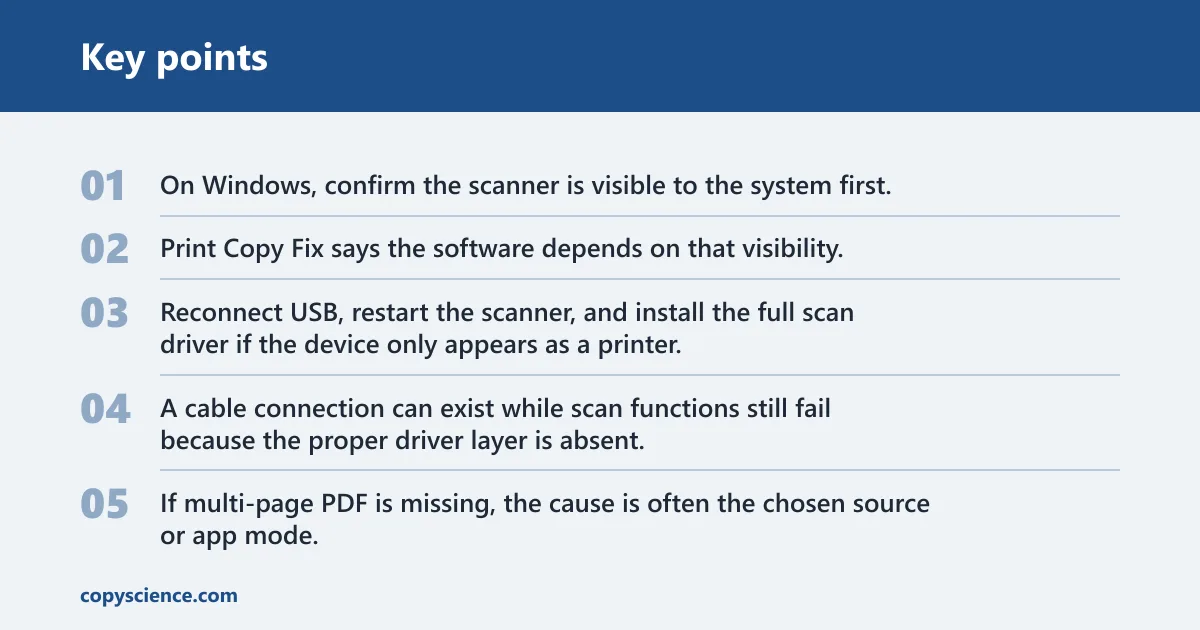
On Windows, confirm the scanner is visible to the system first. The same source says the software depends on that visibility. Reconnect USB, restart the scanner, and install the full scan driver if the device only appears as a printer.
On a Mac, remove and re-add the device if it disappears, then install the manufacturer package if ADF or scan features are missing. A cable connection can exist while scan functions still fail because the proper driver layer is absent.
PDF option missing or pages saved as images
Check the file type field before scanning. Some tools default to JPG or PNG. If the scan already finished as images, combine them into a PDF afterward, but change the default output for the next job so the process stays direct.
If multi-page PDF is missing, the cause is often the chosen source or app mode. Switching from photo mode to document mode, or from a simple image-import tool to a scanner app, usually restores the option.
OCR unavailable or inaccurate
Basic built-in tools may not include OCR at all. In that case, use a dedicated app or desktop program that offers searchable PDF output. The same source says it is used by over 300 million users worldwide and is available in 200+ countries and regions, but OCR still depends on scan quality and document condition.
If OCR misses words, rescan with straighter alignment, cleaner contrast, and the correct language setting. Handwriting remains much less reliable than standard printed text.
Skewed pages, shadows, glare, and oversized files
For skew, tighten ADF guides or use the flatbed for problem sheets. For shadows and glare in phone scans, move the light source and keep the phone centered above the page. For large files, reduce color use, avoid scanning blank backs, and choose a lower-but-readable resolution.
Picture a glossy certificate under a desk lamp. The phone app captures it, but one corner washes out white. Moving the paper near a window with indirect light often fixes the glare without any other setting change.
Frequently asked questions
How do I scan and make a PDF?
Choose the device that fits the job, then scan straight to PDF instead of scanning to images first. A phone is quickest for a few pages, while an ADF printer is better for packets. Check page order, crop, and readability before saving and sharing the finished PDF.
How do I scan to a PDF?
Open a scan tool on your phone, computer, or multifunction printer, choose PDF as the output format, then scan from the flatbed or ADF. For more than a few pages, make sure the software is set to one multi-page PDF rather than separate image files.
How do I scan directly to PDF?
Set PDF before starting the scan, not after. On Windows or Mac, that option appears in the scan software. On phones, save or export as PDF at the end of the document scan. On printers, choose PDF on the panel or in the manufacturer app.
How do I make a scan into a PDF?
If the scanner already created image files, import or combine them into a PDF in Preview, a Windows PDF tool, or a free scan-to-PDF app. For future jobs, switch the scan output to PDF first so the file is created correctly in one step.
How do I do a PDF scan from my phone or computer?
Use your phone for short, quick jobs with good lighting and auto-crop. Use a computer when a USB scanner or multifunction printer is already connected and detected. Computer workflows are usually better for ADF batches, duplex packets, and direct filing into office folders.
How can I scan to PDF for free without a subscription?
Start with built-in tools on iPhone, Android, Windows, or Mac, because they usually cost nothing and work offline. If those fall short, try a free or trial desktop app that supports direct PDF saving, TWAIN or WIA scanner access, and multi-page document handling.