Why Is My Printer Not Printing Anything Even with Full Ink?

If your inkjet shows full ink but prints nothing, start with the print queue, driver, and settings. In many cases, clearing the job or fixing the driver restores printing without touching the cartridges. Skipping that path can waste ink, time, and money on cleanings that do not fix the real fault. This guide walks you through the fastest checks in the right order.
What you’ll need
- A recent test page or the document that failed
- Access to the printer panel or screen
- A computer or phone connected to the printer
- The printer manual or model support page
Why is my printer not printing anything even with full ink?
Full ink does not prove ink is reaching the paper. The first split is simple: if nothing comes out, the cause is usually a stuck queue, offline status, bad settings, or a driver issue. If the page is blank or partly blank, the ink path is more likely to blame.
Step 1: Clear the print queue
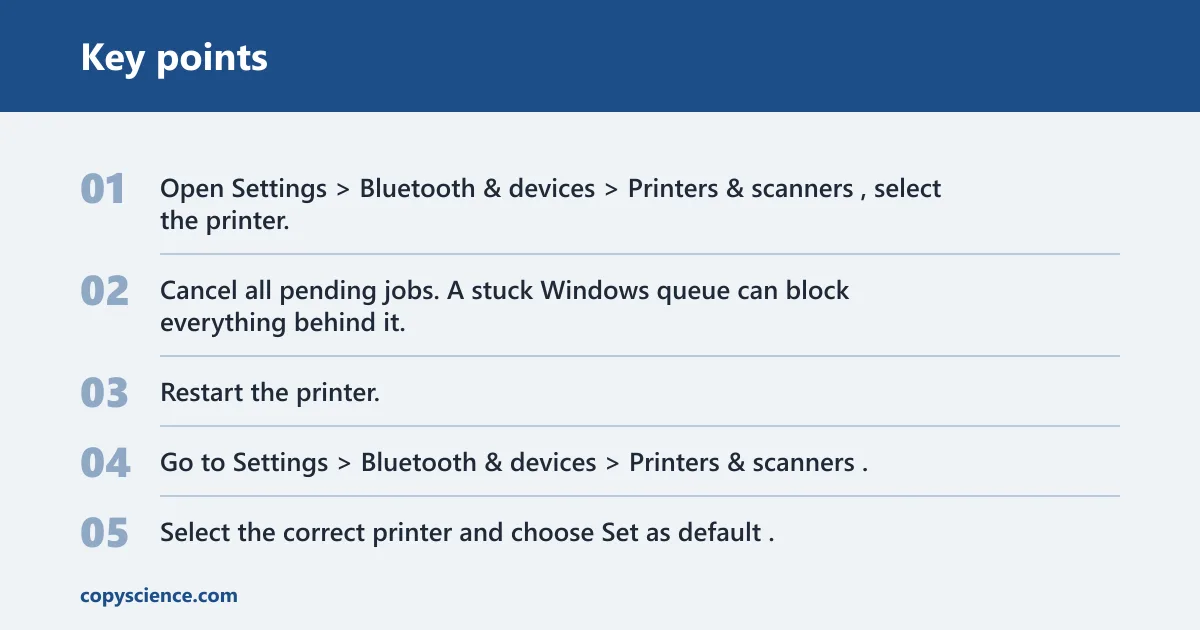
- Open Settings > Bluetooth & devices > Printers & scanners, select the printer, then open Open print queue.
- Cancel all pending jobs. A stuck Windows queue can block everything behind it.
- Restart the printer. If the queue stays stuck, restart the spooler with
services.msc > Print Spooler > Restartor runnet stop spoolerthennet start spooler. (Microsoft Support)
Say your laptop shows a 12-page PDF waiting while the printer still sits idle. Clearing those jobs is faster than replacing a cartridge that may be fine.
Step 2: Fix offline status and the default printer
- Go to Settings > Bluetooth & devices > Printers & scanners.
- Select the correct printer and choose Set as default.
- Open the queue and turn off Use Printer Offline if it is enabled.
- Reconnect USB, Wi‑Fi, or Ethernet if the device is powered on but still offline.
Step 3: Check print settings
- Open the print dialog in the app you are using.
- Match paper size to the loaded media.
- Check paper type/media, orientation, and scaling.
- Print one page with standard settings before trying custom layout or borderless mode.
A letter-size document sent to a tray loaded with A4 paper can fail, pause, or print strangely. The job can fail, pause, or print in a strange mode even though the printer itself is fine.
Why does my printer show full ink but print blank pages?
Blank pages point to the ink delivery path, not the ink counter. A full cartridge or tank does not automatically mean ink is reaching the paper. On inkjets, blocked nozzles are one of the most common Epson causes, and the same basic issue can appear on other brands too.
Step 4: Test ink delivery
- Run a nozzle check from the printer menu or the printer software.
- Inspect the pattern for missing lines or gaps. A nozzle check is used to inspect the print pattern for missing sections.
- Use head cleaning only if the nozzle check shows missing lines or the page is blank.
- Wait between cleanings. Repeated cleanings should not be done too quickly.
If the pattern has clean black bands but one color is absent, the issue is usually in that color channel, not the whole printer. If the page is totally blank after a clean nozzle check, move to seating and flow checks.
Cartridge and tank checks
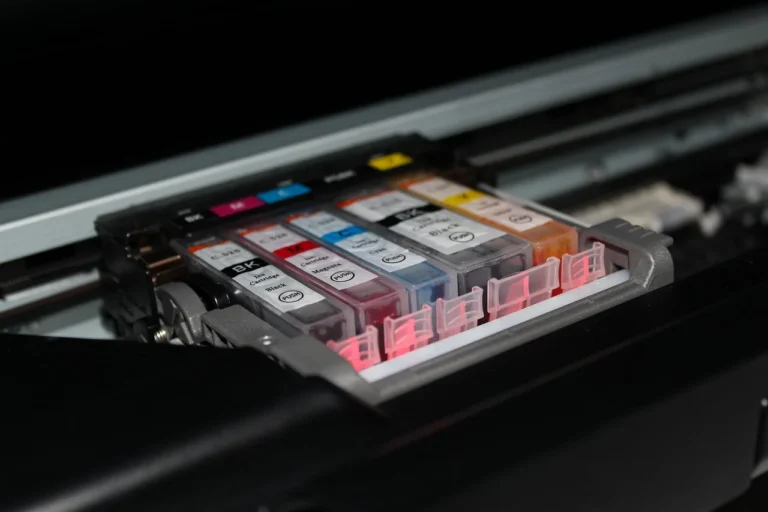
- Remove and reinstall the cartridge or tank according to the model instructions.
- Check that all seals and tape have been removed from new cartridges.
- On tank printers, confirm the ink has actually moved through the fill path.
- Look for air in the ink line if the model uses tubing or a tank feed system.
Cartridge printers are sometimes reported to fail at the chip, seal, or seating point. Tank printers add a second layer: the bottle may be full, but air in the line can still stop output.
Printer diagnostic table
| Symptom | Most likely cause | Fastest test | Next action | Inkjet vs tank-printer notes |
|---|---|---|---|---|
| Blank pages | Blocked nozzles or ink not reaching the head | Run a nozzle check | Use head cleaning only if the pattern has missing lines | Cartridge printers often point to seating or seal issues; tank printers can also have air in the line |
| Partial text | Clogged nozzles or a weak ink path | Print the built-in test pattern | Clean the head once, then recheck | Tank models may need a flow check after cleaning |
| No response | Stuck queue, wrong driver, or printer selection problem | Open the queue and try a second app | Cancel all jobs, restart the spooler, and confirm the default printer | Ink delivery is less likely than software failure here |
| Flashing lights | Paper, cover, cartridge, or error state | Check the control panel message | Clear the error before changing ink or drivers | Many tank models also flash when the tank system is not seated properly |
| Offline status | Connection issue or printer set offline in the system | Check Use Printer Offline and the cable or Wi‑Fi link | Reconnect USB or Wi‑Fi and set the printer as default | Ink type does not matter until the device is reachable |
Why is my printer offline even though it is turned on?
A printer can be powered on and still appear offline in Windows. That status often means the computer is not talking to the device, the wrong printer is selected, or Windows is holding the device in offline mode. The fix is usually connection or selection related, not ink related.
Step 5: Check drivers and firmware
- Open Settings > Bluetooth & devices > Printers & scanners and confirm the correct model is selected.
- If the wrong queue or mixed driver appears after an OS update, remove the printer and add it again.
- Check the manufacturer app or panel for a firmware update.
- After updating firmware, restart the printer.
Driver or software conflicts can stop printing even when the device looks healthy. Reinstalling the printer is often the cleanest fix when jobs stall but the queue is empty.
Do cartridge chips or subscription checks stop printing even when ink is full?
Yes, on supported HP models with Instant Ink, printing can stop if the printer cannot verify subscription status. The printer may need occasional internet access for verification, and payment-failure or page-limit issues can block jobs even when the tank or cartridge reads full.
Subscription verification checks
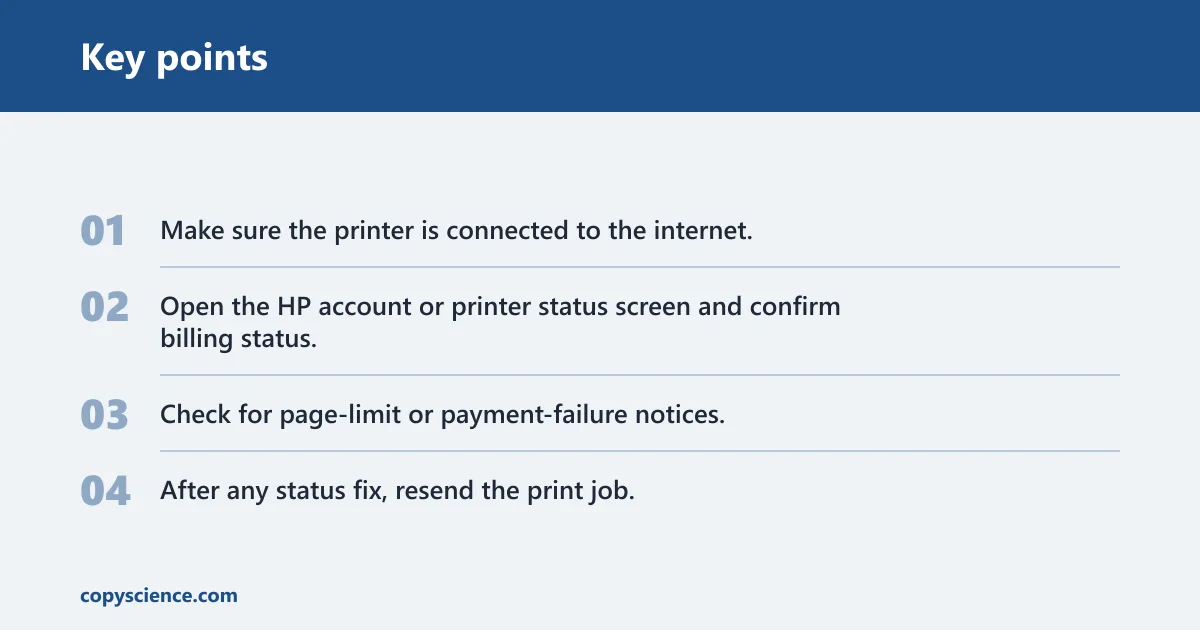
- Make sure the printer is connected to the internet.
- Open the HP account or printer status screen and confirm billing status.
- Check for page-limit or payment-failure notices.
- After any status fix, resend the print job.
Common mistakes
- Running repeated cleanings before checking the nozzle pattern. That wastes ink and can add little value if the queue or driver is the real problem.
- Replacing cartridges before clearing the queue or fixing settings.
- Ignoring subscription verification on supported HP models.
- Missing the difference between offline status and an actual hardware fault.
- Using the wrong paper size or media setting and assuming the printer is broken.
If that didn’t work
If the printer still will not print, move down the list in order: cancel every queued job again, remove and re-add the printer in Settings > Bluetooth & devices > Printers & scanners, then update firmware and restart the device. If the pattern is blank after all of that, the fault is more likely in the ink delivery path than in software.
When a cleaning becomes the right next step
Use a head cleaning cycle only after a nozzle check shows missing sections or the page is blank with a known-good queue and settings. If the first cleaning does nothing, wait before repeating it. Back-to-back cycles waste ink and can dry the waste pad faster than they fix the fault.
Frequently asked questions
What do I check first when a printer won’t print?
Open the print queue, cancel all jobs, and confirm the correct printer is set as default. Then check whether Use Printer Offline is enabled. Those three checks solve a large share of no-response cases before you touch cartridges or clean the head.
Can clogged nozzles stop a printer with full ink from printing?
Yes. A nozzle check can show missing lines even when the cartridge or tank reads full. If the pattern is incomplete, run one head cleaning, then print the test pattern again. If nothing changes, stop and inspect seating, seals, or tank flow.
How do I fix a stuck printer queue?
Cancel all pending jobs from Settings > Bluetooth & devices > Printers & scanners. If jobs remain, restart the Print Spooler with services.msc > Print Spooler > Restart or net stop spooler followed by net start spooler. Then resend one test page.