Printer Not Printing in Color: Troubleshooting Color Issues

If your printer is not printing in color, open the app’s print dialog and set Color, then run a nozzle check: missing every color points to a settings or driver problem, one missing color usually means that cartridge or ink path, and faded output often means clogged nozzles. Ignoring the symptom can waste ink on repeated cleanings and still leave the same fault unresolved. This guide walks you through a symptom-based decision tree for grayscale, faded, and one-color failures.
Color print checks
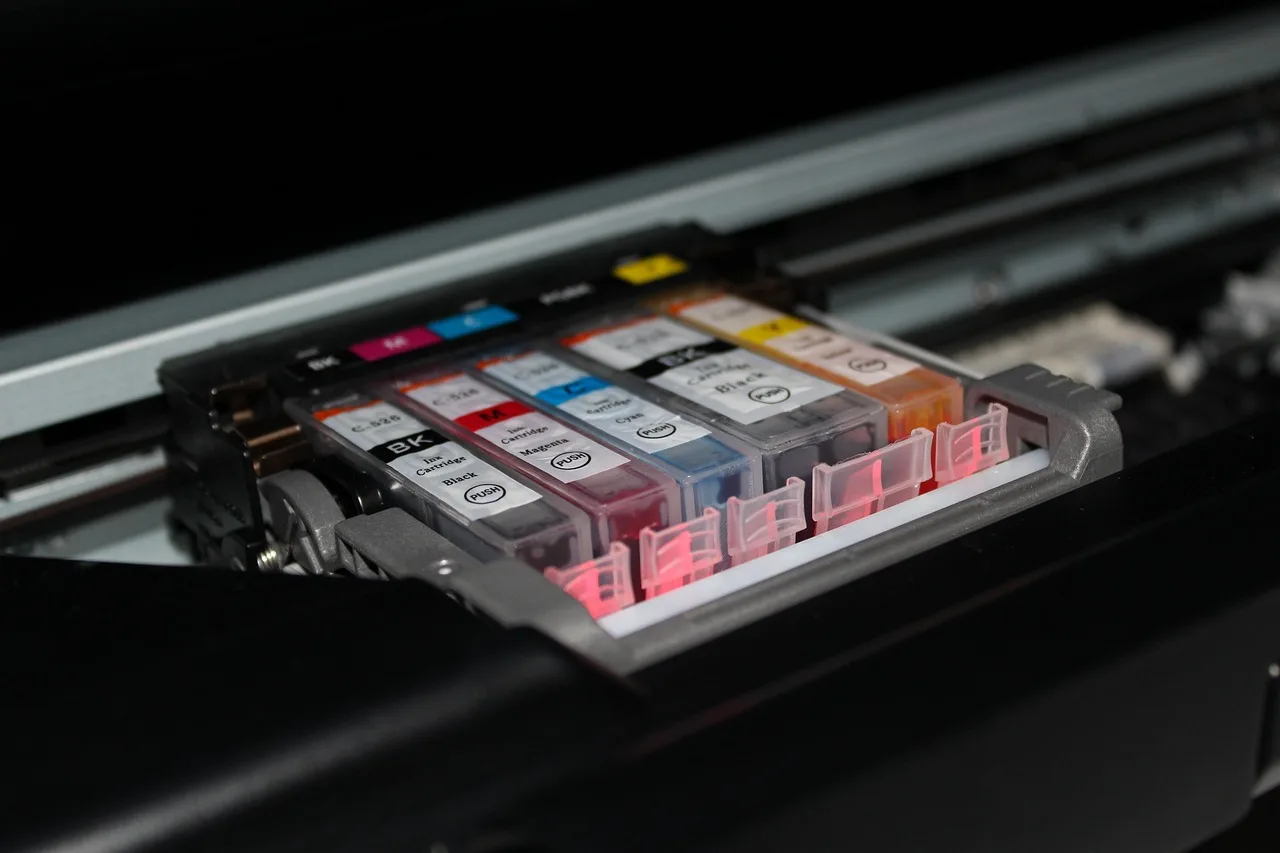
Most color printers build output from cyan, magenta, yellow, and black dots. A weak or missing CMYK channel can shift the whole page, even when the other colors still print. That is why the first job is to sort the symptom before you press the cleaning button again.
Printheads use microscopic nozzles. Dried ink can clog a few of them, which creates missing bars, streaks, or banding. Inkjet and laser models fail differently, but the first decision is similar: is color disabled in settings, or is one channel failing inside the printer?
Printer not printing diagnostic matrix
| Symptom | Likely cause | First test | Next action |
|---|---|---|---|
| Prints in grayscale only | Color disabled in app or system settings; driver issue | Check Color versus Grayscale or Black and White | Change the default preference, then reprint a simple color document |
| One color missing | Empty or poorly seated cyan, magenta, or yellow cartridge; clogged nozzle | Run the built-in nozzle check | Reseat the cartridge, inspect contacts, then clean only that channel if needed |
| Colors are faded | Low ink, economy mode, paper type mismatch, or partially clogged nozzles | Check ink levels and paper type setting | Use normal quality, match the media, then run up to 2-3 cleaning cycles |
| Colors are wrong but present | Paper setting mismatch, monitor mismatch, or weak channel balance | Print a built-in test page and compare on plain paper | Correct paper type, then confirm the source image is not being viewed in RGB-only assumptions |
| Test page prints correctly | Software, driver, or application setting problem | Print from a different app or device | Reset print defaults, then update or reinstall the driver if needed |
| Cleaning makes no change | Persistent clog, bad cartridge contact, or hardware fault | Repeat the nozzle check after cleaning | Stop after 2-3 cycles and move to manual cleaning, contact cleanup, or cartridge replacement |
Why is my printer not printing in color?
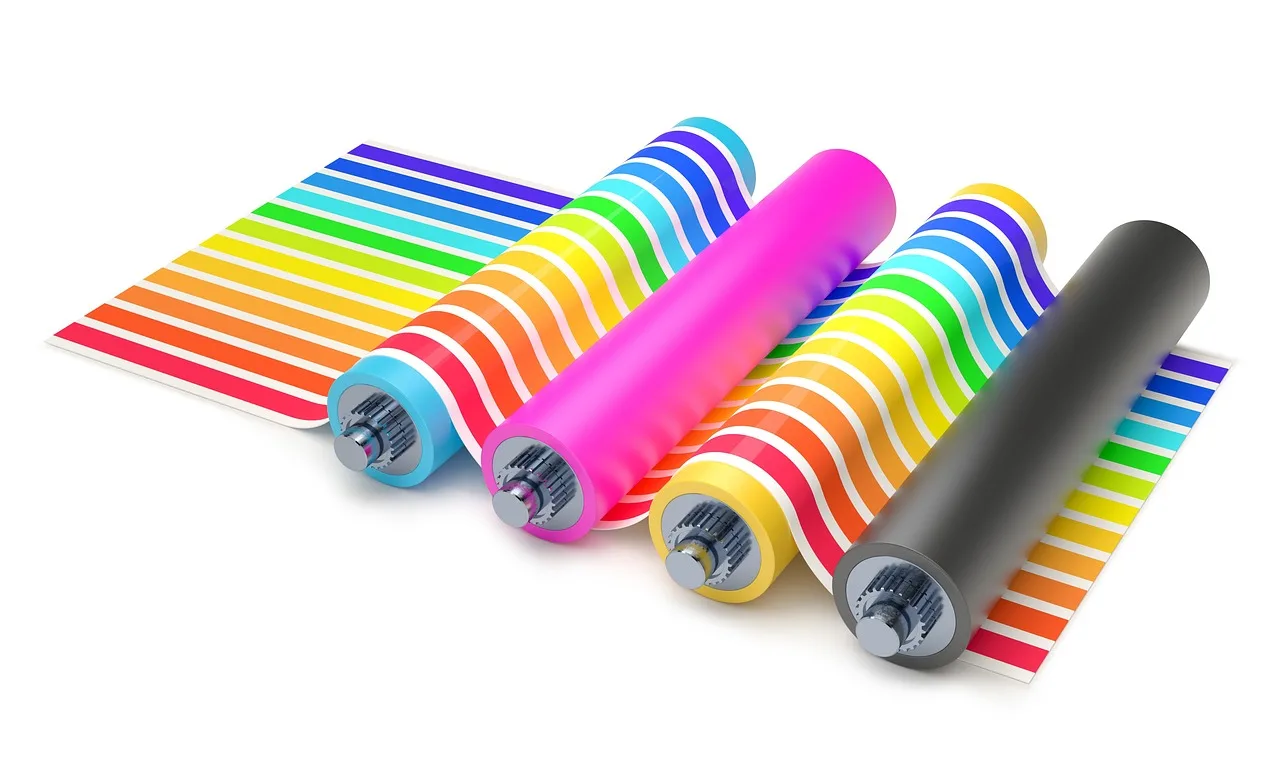
If color output disappears entirely, start with the color mode, then check the cartridge or toner level, then isolate the driver. Printing in black and white often means the job was sent with Color turned off, or a saved default keeps forcing grayscale. If settings are correct, one depleted channel or a software fault is the next likely branch.
Grayscale or black-and-white mode
Incorrect print settings commonly include Color versus Grayscale or Black and White. That setting can exist in the application and in the system printer preferences, and a saved default may persist across jobs. If either layer says grayscale, the printer will obey that command even when the hardware is fine.
Check the print dialog first, then open the printer’s default preferences from the operating system. If a draft or Economy mode is selected, color fidelity usually drops as well, because those modes reduce ink usage and often soften color output.
Low or empty color cartridge
Empty or nearly empty cyan, magenta, or yellow cartridges often stop color output. In a CMYK printer, one depleted channel can flatten the page or make some colors disappear while others remain. A depleted magenta cartridge, for example, can make reds look pale and flat.
Inspect the cyan, magenta, yellow, and black consumables separately. Replacing a cartridge below 10–15% remaining is a common rule of thumb because output often declines before the printer reaches zero. If a cartridge is full but color still fails, reseat it and inspect the contacts before assuming the supply is fine.
Driver or software mismatch
Printer drivers translate operating system commands into printer instructions. If color stopped after an OS update, a driver update or reinstall is worth checking. A corrupted or outdated driver can send jobs in a way that suppresses color, even when ink levels and settings look normal.
Use the same file from a different application if possible. If one program prints color and another does not, the issue may sit in that app’s print settings rather than the printer itself. That split is useful because it keeps you from replacing cartridges for a software problem.
Why do colors look faded or wrong?
Faded or shifted color usually means the printer is producing color, but not enough of the right kind. That can come from a weak channel, the wrong paper type, economy mode, or monitor mismatch. The key is to decide whether the printer is actually at fault or whether the screen is lying about the target color.
Paper type mismatch
Paper type matters because plain paper settings can dull photo output. If the tray holds photo paper but the driver is set to plain paper, the printer may use a lighter ink pattern and less aggressive color handling. The result looks washed out, especially in skin tones and shadows.
Match the media setting to the sheet in the tray. If you print documents on regular copier paper, plain paper is correct. If you print photos or coated stock, use the matching media type and a normal or photo quality setting instead of draft mode.
Monitor color versus printed output
Do not blame the printer too quickly if the screen and paper do not match. Monitors display RGB light; printers lay down CMYK dots. That difference alone can make a bright on-screen blue print darker or a red print less saturated.
Use the printer’s test page or a neutral photo to judge the hardware, not a highly edited image on an uncalibrated monitor. If the test page looks correct but the document looks off, the problem is more likely in the file, application, or screen profile than in the printer.
One weak channel still prints
Color can be present and still wrong. A weak magenta path, for example, may leave orange and green-looking shifts even though the page is not blank. Because CMYK channels mix to create the final result, one weak channel can distort several colors at once.
Say your 8.5 x 11 photo print suddenly loses warm reds but blue skies still look normal. That points more toward magenta supply or magenta nozzle trouble than a total color setting failure. A missing channel creates a different signature from a generic grayscale job.
What the test page shows
The built-in test page is one of the fastest ways to separate printer faults from computer faults. Printable Press notes that it isolates whether the issue is inside the printer or the computer. If the printer’s own pattern is wrong, focus on hardware. If it looks right, move back to settings, driver, or the file.
Reading missing bars, streaks, and banding
A nozzle check usually prints a small diagnostic pattern with blocks or bars for the color channels. Missing bars, broken lines, or banding point to clogged printhead nozzles or a weak cartridge path. A clean pattern on the nozzle check means the printer can form color correctly on its own.
Look at each CMYK channel separately. If cyan and yellow print but magenta is absent, the fault is not “color in general.” It is a single channel problem, which narrows the fix and saves ink.
When the test page points to hardware or software
If the test page prints correctly but regular documents do not, the printer hardware is usually not the main issue. The problem is more likely in color settings, the application, or the driver. If the test page itself is faded or missing color, the fault is inside the printer path.
A common first-timer mistake is to clean the printhead before printing the built-in test page. That skips the easiest branch in the decision tree and can waste ink on a problem that is really just a grayscale setting in the print dialog.
Color settings checklist
Check application settings, system defaults, and the printer itself in that order. Default preferences can persist across jobs, so a single bad choice can keep repeating. If you fix the print dialog once but the next job still comes out grayscale, the default may still be set wrong.
Application-level print settings
Open the print dialog in the app that is sending the job. Confirm that Color is selected, not Grayscale or Black and White. Also check for draft, economy, or low-quality modes, since those settings reduce ink use and usually lower color fidelity.
- Open the file in the source application.
- Choose Print and open the full settings panel.
- Select Color output.
- Turn off Draft or Economy mode.
- Print a one-page color sample.
System print defaults
If the app setting looks right, open the printer’s system preferences. Set the default to color there too. Some printers remember this at the device level, so a job can still print in black and white even after you fix the app-level dialog.
Check whether the printer is set to a default profile that favors plain paper, grayscale, or economy output. Those defaults can survive across jobs and users, which is why a fresh document can still inherit the same wrong behavior.
Cartridge and printhead fixes
If settings are correct and the test page shows a hardware fault, move to the ink path. Start with seating and contacts, then use cleaning. Repeated cleaning without checking the symptom first can burn through ink quickly, especially on inkjet machines.
Reseat cartridges and inspect contacts
Cartridges can look installed but still fail if they are not seated properly. Ceedo notes that even a full cartridge may fail if contacts are dirty or poorly seated. Remove the cartridge, reinstall it, and inspect the electrical contact points for dust or oxidation.
Use a lint-free cloth to wipe the contacts gently. Do not flood them with liquid. If the printer uses separate cyan, magenta, yellow, and black cartridges, check each one rather than assuming the whole set is bad.
Run the cleaning utility
The cleaning utility can clear dried ink from microscopic nozzles. It is most useful when the nozzle check shows missing bars or broken lines after a period of idle time. Tech News Today ties printhead alignment issues to recently changed cartridges or long idle periods, which often points to the same cluster of faults.
Use the automated cleaning once, then print another nozzle check. If the pattern improves but is still incomplete, run another cycle. The same source recommends limiting automated cleaning to two or three consecutive cycles. After that, the ink cost rises faster than the odds of a fix.
Stop after 2-3 cycles and clean manually if needed
If two or three cleaning cycles do not change the nozzle check, stop. More cycles often use ink without solving the root cause. At that point, move to manual cleaning only if the printer manual allows it, or replace the suspect cartridge or printhead if the model uses a replaceable unit.
Manual cleaning is a fallback for dried ink or blocked nozzles, not a first move. It is most useful when the diagnostic pattern points to one stubborn channel and the printer has been idle for a while. If cleaning makes no change at all, suspect a bad cartridge, contact problem, or hardware fault.
Driver and media checks
Driver and media issues are common when color stopped after a software change or a paper change. If the printer works on the built-in test page but fails from the computer, the driver becomes more important. If colors are present but dull, paper settings are just as important.
Update or reinstall printer drivers
Do this after an operating system update, a printer migration, or sudden color failure with no hardware change. The driver translates print commands, so a corrupted or outdated version can break color output while still allowing black text to print. Reinstalling often clears that mismatch faster than repeated cartridge cycles.
Match paper type to the tray
Confirm that the driver’s paper setting matches what is actually loaded. Plain paper, photo paper, and coated stock do not print the same way. A wrong media setting can make color look weak even when the cartridges and nozzles are fine.
Confirm ink or toner compatibility
Check that the cartridge matches the printer model and region requirements. Some devices reject incompatible or refilled cartridges, or they may read them as present but not usable. If a cartridge is authentic, seated correctly, and still fails, the problem is less likely to be compatibility and more likely to be contacts, nozzles, or electronics.
Frequently asked questions
Why is my printer not printing in color even though the ink is full?
Full ink does not rule out a settings or driver problem. Check whether the job is set to Grayscale or Black and White, then print a nozzle check. If the built-in pattern prints color correctly, focus on the app, default preferences, or driver rather than the cartridge level.
How do I change my printer from grayscale to color?
Open the print dialog in the app first, then change the output from Grayscale or Black and White to Color. After that, check the printer’s system defaults so the change persists across jobs. If draft or economy mode is on, switch to normal quality as well.
How do I check ink levels on my printer?
Use the printer’s status screen, control panel, or companion software to read the cartridge levels. Check cyan, magenta, yellow, and black separately. A low magenta level, for example, can make reds look pale even when the other colors still appear normal.
Will cleaning the printhead fix missing colors?
Cleaning can fix missing colors when the cause is dried ink in the nozzles. It will not help a grayscale setting, a dirty contact, or a dead cartridge. Limit automated cleaning to 2-3 consecutive cycles, then stop if the nozzle check does not improve.
Do I need to update my printer driver if color printing stopped working?
Yes, if the problem started after an operating system change or appeared suddenly without a cartridge or setting change. Drivers translate computer commands into printer instructions, so a bad driver can block color output. If the printer’s own test page looks fine, the driver becomes a stronger suspect.
Should I use the printer’s built-in test page to diagnose color problems?
Yes. The built-in test page is one of the best ways to tell whether the fault is in the printer or in the computer. If the page shows missing bars or streaks, the issue is inside the printer. If it prints normally, check settings, files, and drivers next.