Printer Not Printing: Common Causes and Fixes

A printer that’s on but won’t print usually has a problem in the printer itself, the device, the driver, or the network; isolate the fault first, then reset the queue, connection, and drivers in that order. Random troubleshooting wastes ink, stacks duplicate jobs, and leaves the real fault in place. This guide gives you a fast decision tree and step-by-step fixes for Windows, Mac, iPhone, iPad, Android, USB, Wi‑Fi, and network printers.
What you’ll need
- The printer turned on and loaded with plain paper
- Access to the printer screen, buttons, or menu
- Your computer, phone, or tablet that is failing to print
- The printer’s USB cable, if it uses USB
- Your Wi‑Fi network name and password, if it uses wireless
- Admin access on Windows or macOS to remove and reinstall a printer
- The printer maker’s support page for the correct driver package
Start with the failure type
Printer cannot self-test or make a local copy
Treat this as a printer-side problem first. If the device cannot print its own test page or make a copy from the flatbed, the computer, phone, driver, and network are probably not the first fault to chase.
Check the printer screen for a jam, door-open, out-of-paper, cartridge, or service message. Then inspect for torn paper near rollers or sensors, covers that are not latched, low or unrecognized cartridges, and protective tape still attached to a new cartridge.
Printer can copy or self-test but cannot print from a device
This usually points away from the print engine and toward the queue, default printer, offline state, connection path, or driver. If copying works, the paper path, scanner power, and core printer hardware are at least partly alive.
That is the branch where stuck jobs, the wrong printer selection, a stale wireless connection, or a corrupted driver fit best.
Jobs send but stay stuck, vanish, or print blank
A stuck queue or crashed spooler often fits when one job blocks every later job.
Blank pages point in a different direction: empty or unrecognized cartridges, protective tape left on, clogged printheads, or the wrong driver variant for the model.
Printer triage checklist
10-minute decision tree
| Minute | Check | If yes | If no |
|---|---|---|---|
| 0-1 | Power on the printer and print a self-test page or make a local copy. | Go to symptom type. | Treat it as printer hardware, jam, cartridge, or supplies trouble. |
| 1-2 | Identify the symptom: offline, stuck queue, blank pages, or device-specific failure. | Pick the matching fix path below. | If the symptom is unclear, send one single-page test job. |
| 2-4 | Clear the print queue. | Retry one page. | If jobs will not clear, restart the spooler first. |
| 4-5 | Check the default printer and make sure the queue is not paused or offline. | Retry one page. | Correct the setting, then retest. |
| 5-6 | Restart Print Spooler on Windows. | Retry one page. | If it crashes again, suspect driver conflict. |
| 6-8 | Test the connection: reseat USB or reconnect Wi‑Fi. | Retry one page. | Move to driver reinstall. |
| 8-10 | Reinstall the correct driver from the manufacturer support site. | Retest from the same app. | Escalate if self-test fails, spooler keeps crashing, or offline status returns. |
If X, then Y table
| If this happens | Most likely branch | Do this next |
|---|---|---|
| Windows says “Printing” but nothing comes out | Queue or spooler | Open Settings > Bluetooth & devices > Printers & scanners > your printer > Open print queue, cancel all jobs, then restart Print Spooler in services.msc. |
| Wireless printer is on but shows Offline | Network path or stale IP | Confirm the printer and device are on the same Wi‑Fi, then shut down the printer, restart the router, restart the computer, power the printer back on, and let it reconnect before retrying. |
| The wrong printer gets the job | Default printer or duplicate queue | Set the intended printer as default in Printers & scanners and remove unused duplicate entries. |
| One document blocks every later document | Frozen print job | Cancel all documents, clear the queue, and retry with a one-page text file. |
| The printer copies fine but computer printing fails | Driver, spooler, or connection | Test USB or Wi‑Fi, then reinstall the manufacturer driver if the queue keeps failing. |
What should you check first when a printer won’t print?
First, find out whether the printer can work without the computer. Print a self-test page from the printer menu or make a local copy. If that fails, stop computer troubleshooting and check jams, cartridge errors, paper path sensors, and the printer display before touching drivers or network settings.
Fast first checks
- Run a self-test. Use the printer’s control panel to print a status, nozzle, or configuration page, or place a sheet on the scanner and make a copy. This split matters because a printer that cannot print its own page is not mainly a Windows or Wi‑Fi problem.
- Read the printer screen. If the printer has a display, note the exact message shown, such as Paper Jam, Door Open, Out of Paper, Low Toner, Replace Cartridge, or Offline. If it has only lights, check whether a paper, ink, or attention light is lit or blinking, then close any open doors, load paper, and reseat the indicated cartridge or toner before testing again.
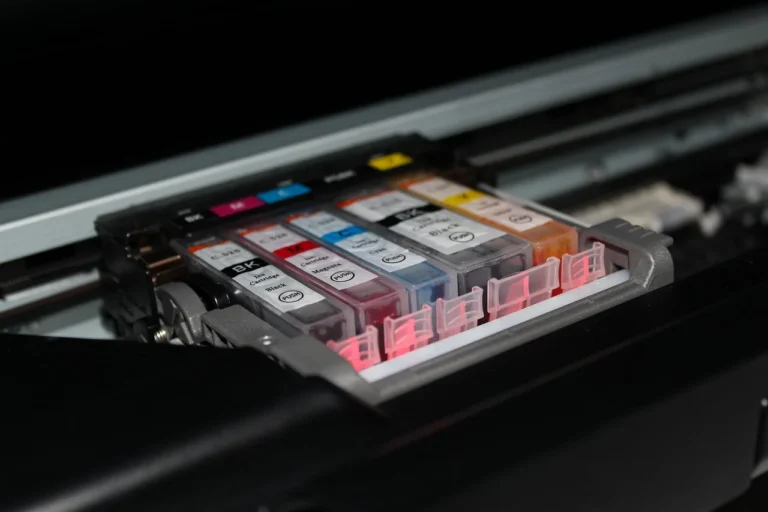
- Check supplies physically. Remove and reseat cartridges or toner, confirm protective tape has been removed, and verify the cartridges match the model. A cartridge can be installed yet still be unrecognized.
- Inspect for partial jams. Turn the printer off, open each user-access cover and tray one at a time, and look along the paper path for small scraps near rollers, guides, and visible sensors. Remove only loose pieces you can reach without forcing parts, close every cover fully, then power the printer back on and try a self-test again.
If the printer makes a copy immediately but every computer print job sits at “Spooling,” that one test rules out a dead print engine and moves the next check to the queue and spooler, which is faster than reinstalling software first.
Fix the problem in order
Step-by-step path
- Clear the queue. On Windows 11, go to Settings > Bluetooth & devices > Printers & scanners > your printer > Open print queue, then cancel every job. Clearing stuck print jobs in the Windows Print Spooler is the first quick fix because one frozen job can block all later jobs.
- Retry one-page test. After the queue window shows no remaining jobs, open Notepad, type a short line such as “Printer test,” and print that single page once. If it prints, the queue is working again; if it stalls, stop sending more copies and continue to the next step.
- Check default printer. Open Settings > Bluetooth & devices > Printers & scanners, select the printer you want to use, and choose Set as default if that option appears. If Windows is automatically changing the default printer, turn off Let Windows manage my default printer, then send one new test page to confirm the job goes to the correct queue.
- Check offline and paused states. In the queue window, make sure Pause Printing is not active and Use Printer Offline is not checked. A printer can look ready at the panel and still refuse jobs if the queue is paused.
- Restart Print Spooler. Press Start, type
services.msc, open Print Spooler, then choose Restart. Clear queued jobs first so the service can restart cleanly. - Clear spooler files. If the spooler will not recover, stop Print Spooler, delete files in
C:\Windows\System32\spool\PRINTERS,then start the service again. This removes orphaned job files that can keep the queue clogged. - Test the connection path. For USB, turn the printer on, unplug the cable from the printer and computer, reconnect it firmly, then try a different USB port on the computer and print a one-page test. For Wi‑Fi, check the network name shown on the printer’s wireless menu or network page and make sure it matches the network your computer is using, then reconnect the printer to that network if needed before testing again.
- Reinstall the driver. Remove the printer from the device list, then download the full driver or setup package for the printer model and operating system from the manufacturer’s support page, install it, and add the printer again. This is the slower fix, so it belongs after queue, status, and connection checks.
- Run the built-in troubleshooter. In Windows, go to Settings > Bluetooth & devices > Printers & scanners > your printer > Troubleshoot. Use it after the manual checks, not before them, because it rarely beats a visible queue or status problem.
- Escalate with limits. Stop routine troubleshooting if the printer cannot self-test, the spooler crashes repeatedly after a clean restart, duplicate queues keep returning, or the printer stays offline after reconnecting and driver reinstall. Those patterns point to deeper hardware, firmware, or managed-network issues.
If spooler errors continue after the steps above, review Microsoft Support.
A common first-timer mistake is sending the same spreadsheet five times while the queue is frozen. When the jam or spooler fault clears, all five jobs can release at once and waste paper and ink.
Why is my printer connected but not printing?
If a printer shows up on the device but produces nothing, the fault is usually in the queue, printer state, connection path, or driver rather than basic detection. Start by clearing pending jobs, confirm the correct default printer, then check whether the device is paused, offline, or connected to the wrong USB port or Wi‑Fi network.
Windows
- Open the queue. Go to Settings > Bluetooth & devices > Printers & scanners > your printer > Open print queue. If one old job is stuck, cancel all jobs before testing again.
- Confirm printer status. In the queue menu, make sure Pause Printing and Use Printer Offline are both off. Then check the printer is the one Windows routes jobs to by default.
- Restart the spooler. Open
services.msc, right-click Print Spooler, and choose Restart. If it stops again after a new job, suspect an old or conflicting driver.
macOS
- Check the queue. Open System Settings > Printers & Scanners, select the printer, open its queue, and look for a job marked Paused, Held, or Stopped. Delete that job or click Resume, then print one simple page to see whether the queue moves normally.
- Verify the printer state. If the printer shows unavailable or idle but never starts, remove it from Printers & Scanners and add it again. This often refreshes a stale network or driver mapping.
- Use the right driver. When re-adding, pick the manufacturer driver if one is offered for the exact model instead of a generic alternative. Generic drivers can print, but they also cause odd blank-page or tray-selection failures.
iPhone and iPad
- Check AirPrint basics. Make sure the iPhone or iPad and printer are on the same Wi‑Fi. Cellular data on the phone does not help if the printer is on local Wi‑Fi only.
- Try another app. After a failed print, open Safari or Notes, load a simple page or note, tap Share > Print, and choose the same printer. If this prints but the original app does not, the issue is likely in that app’s print output rather than printer discovery.
- Restart network devices. If the printer vanishes or stays unavailable, turn the printer off, restart the router, reconnect the iPhone or iPad to the same Wi‑Fi network, then power the printer back on and wait for it to reappear.
Android
- Check print service. Open Settings, search for Printing or Print services, and make sure the built-in or installed print service is turned on. Then open the print service and confirm it can search for or list printers before returning to the app and trying again.
- Test from another app. After the original app fails, open Chrome, Files, or Photos, choose a simple page or image, use the app’s Print option, and send one test job to the same printer. If that works, the original app is the part to troubleshoot next.
- Match the network. Open Wi‑Fi settings on the phone and confirm the connected network name matches the one shown on the printer’s wireless menu or network page. If one device is on a guest network or a different SSID, reconnect them to the same main network and retest.
Why does my printer show offline even though it’s on?
An “offline” printer is powered on but not reachable through the connection your device is trying to use. The usual causes are a paused queue, the Use Printer Offline state, a stale wireless IP address, a sleeping printer that never rejoined Wi‑Fi, or a duplicate printer entry pointing to the wrong port.
Offline fixes that matter
- Check the queue state. Open the printer’s queue and turn off Use Printer Offline and Pause Printing. These options can block output even when the front panel looks normal.
- Wake the printer fully. Press the power button once or use the control panel to wake it, then wait for the Wi‑Fi icon or ready light to settle. Some wireless models need a moment to rejoin the network after sleep.
- Reconnect the network. Confirm the printer shows the same Wi‑Fi network name as the computer or phone. If wireless still fails, shut down the printer, restart the router, restart the computer or phone, then power the printer back on and let it reconnect.
- Remove duplicates. In multi-printer setups, delete old copies of the same model marked Offline, especially USB and network variants with similar names. Then set the active one as default.
If your office has “HP LaserJet,” “HP LaserJet (Copy 1),” and “HP LaserJet on USB001,” jobs may be going to the dead copy entry, not the live network queue, even though the printer itself is ready.
Why does my printer copy but not print from my computer?
If the printer copies or prints a self-test page but refuses computer jobs, the print engine, paper path, and at least one cartridge path are working. That narrows the likely causes to the queue, spooler, USB or Wi‑Fi connection, wrong default printer, or a corrupted or conflicting driver.
What this symptom rules out
This symptom makes a full hardware failure less likely. It does not rule out low ink for one color, clogged printheads, or a model-specific cartridge lockout, but it does move software and connection checks ahead of deeper printer repair.
Best-fit fixes for this pattern
- Try both paths. If the printer supports USB and Wi‑Fi, first test the current connection with one short page. Then switch to the other supported connection, add or select that printer entry, and print the same page once. If one path works and the other fails, keep troubleshooting only the failing path.
- Purge old drivers. Remove duplicate printer entries and uninstall old driver packages for printers you no longer use, then install the current package for the exact model. Conflicting drivers are a common cause of spooler crashes.
- Retest with one app. After reinstalling, open a simple app such as Notepad or a web browser, print a one-page document, and wait for that job to finish before trying anything larger. If the simple job works but one business app still fails, the issue may be app output settings rather than the printer.
A wireless all-in-one that copies fine, prints from an iPhone, but fails from one Windows laptop only points away from the printer and toward the laptop’s queue, spooler, or driver.
Common mistakes
Avoid these dead ends
- Reinstalling the driver first. It takes longer and misses the common case where one frozen job is blocking everything.
- Ignoring the printer’s own test page or copy function. That check separates printer-engine faults from computer faults in under a minute.
- Leaving duplicate printers installed. Old USB, WSD, or copied network queues create false “offline” and wrong-default problems.
- Skipping cartridge inspection. Empty, unrecognized, or taped cartridges can block printing entirely on some models, while clogged printheads can cause blank output despite ink being present.
- Using a long or damaged USB cable. A bad cable can cause flaky detection and failed jobs.
- Sending repeated retries before clearing the queue. Once the fault clears, every queued copy may print.
If that didn’t work
- Try another device. Print from a second computer or phone on the same network. If only one device fails, focus on that device’s driver, queue, and app settings.
- Try another connection. If the printer supports both USB and Wi‑Fi, disconnect from the current method, connect with the other one, add or select that printer in the device’s printer list, and print one test page. If the alternate connection works, keep troubleshooting the original connection only.
- Escalate with evidence. Contact support with the exact symptom: self-test result, queue behavior, offline status, connection type, and whether
services.mscrestart helped. That short record saves repeated basic checks.
Prevention
Keep only the printer queues you actually use, and delete stale duplicates after replacing routers, moving between USB and Wi‑Fi, or changing printers. That single cleanup step prevents many false offline and wrong-default cases.
Frequently asked questions
How do I clear a stuck print queue?
On Windows, open Settings > Bluetooth & devices > Printers & scanners > your printer > Open print queue, then cancel all documents. If jobs will not clear, stop Print Spooler in services.msc, delete files in %systemroot%\System32\spool\PRINTERS, and start the service again.
How do I restart the print spooler in Windows?
Press Start, type services.msc, open it, find Print Spooler, right-click, and choose Restart. If the service keeps stopping after you send a job, clear the queue first and then look for corrupted, duplicate, or conflicting printer drivers.
Can low ink stop a printer from printing at all?
Yes, on some models low ink, an empty cartridge, or an unrecognized cartridge can stop output entirely rather than merely reduce quality. Blank pages can also come from clogged printheads or protective tape left on a newly installed cartridge.
Should I reinstall my printer driver if nothing else works?
Yes, but only after self-test, queue, offline, default-printer, and connection checks. Reinstall the exact driver from the manufacturer support page when the spooler keeps crashing, jobs vanish, duplicate drivers exist, or the printer copies locally but still will not print from the device.