
What Causes Printer Paper Jams and How to Avoid Them

Recurring printer paper jams are often caused by a few common issues such as the wrong paper, worn feed parts, or a sensor fault; start by checking paper condition and size before opening the printer further. If you skip the cause, the same jam tends to return, often with torn sheets and extra damage from rough clearing. This guide shows how to tell paper problems from feed-mechanism issues and sensor faults, then choose the safest first fix.
Common causes of printer jams
Paper jams are a common printer fault. The most likely causes are loading mistakes, poor paper condition, dirty or worn rollers, debris in the paper path, and sensor faults that report a jam even when the path is clear. A common order is to check paper first, then feed parts, then sensors, then model-specific hardware.
Paper loading mistakes
Wrong size paper, overfilled trays, and misaligned guides are common triggers. The paper stack should sit flat, the side guides should touch the stack without bowing it, and the tray should be fully seated. A tray that is even partly out of position can cause the pickup rollers to grab sheets crookedly.
Feed rollers and contamination
Pickup and feed rollers move one sheet at a time through the printer. As they wear, they lose grip. Dirt, dust, and ink transfer can also reduce traction, so the printer pulls too many sheets or fails to pull any sheet at all. That is a mechanical issue, not a paper one.
Debris and sensor faults
Small scraps, torn corners, and misread sensors can all trigger a jam. RavenTech notes that a jam can be reported even when no paper is visible, and torn fragments can cause false jam indications. A jam reported at power-on may indicate a stuck sensor flag or paper-present switch rather than an actual blockage.
How do you tell the cause first?
Start with what the printer is actually doing: a visible sheet stuck in the path, a false jam warning with no paper showing, or more than one sheet feeding together. Then note where the paper stops. The stopping point often tells you whether the problem began in the tray, at the rollers, or deeper in the path.
Visible jam versus false warning
If paper is clearly stuck, you likely have a feed or path issue. If the display says jam but the path looks empty, suspect a torn fragment or a sensor fault. Use a flashlight and check the feed route, rear access area, and any user-accessible duplex path before assuming the printer is blocked.
One-sheet jam versus multi-sheet feed
A single sheet that stops partway usually points to loading, rollers, debris, or a damaged path. Two or more sheets pulled together often point more strongly to paper condition, overloading, or worn rollers that do not separate sheets well. That distinction helps narrow the first inspection without opening unnecessary panels.
| Symptom | Likely cause | What to inspect first | Safe user action | When to stop and service the printer |
|---|---|---|---|---|
| Jam message, no paper visible | False sensor alert or torn fragment | Paper path with a flashlight, sensor area, rear access | Power off, open access doors, remove any loose scraps gently | If the warning returns at power-on or a sensor flag looks stuck |
| Paper feeds crooked or stops near tray | Paper guides misaligned, tray not seated, worn pickup roller | Tray loading, side guides, roller surface | Reload paper flat, align guides, reseat the tray | If the tray or pickup assembly does not sit squarely |
| Two sheets feed at once | Overfilled tray, damp paper, weak separation from worn rollers | Stack height, paper dryness, roller condition | Reduce stack, replace damp paper, fan and reload sheets | If the printer keeps double-feeding after a fresh load |
| Jam near rear exit on a laser printer | Paper path obstruction, fuser-area issue, duplex path fault | Rear access path, duplex unit if removable | Let the printer cool before handling the rear area | If the jam repeats at the same rear location or parts look damaged |
What should you check in the paper tray?
The tray is the simplest place to start because many jams begin there. Match the paper to the printer’s size and type setting, keep the stack dry and flat, avoid overloading, align the guides, and make sure the tray is fully seated. If the printer starts feeding from a crooked stack, the rest of the path gets blamed for a tray problem.
Load the correct paper
Use paper that matches the printer’s setting for size and type. A stack with curled, crumpled, damp, or cut sheets increases jam risk. Thebootupblog recommends dry paper, storing paper in a room with moderate temperature, and avoiding staples and paper clips in the printer. Those are basic rules, but they matter because feed rollers depend on predictable sheet thickness and stiffness.
Keep the stack flat and seated
Do not overfill the tray. Paper that rises above the tray limit can rub, buckle, or feed unevenly. Align the guides so they touch the stack edges without bending them, and push the tray in until it locks fully. A tray that sits partly out can mimic a deeper hardware failure.
Say your printer is set for letter size, but the tray holds a mixed stack with a few curled sheets on top. The printer may still pull one clean sheet, then grab the next two together because the top edge is uneven. Changing only the paper condition often fixes that pattern without opening the machine.
How do rollers cause jams?
Rollers are the parts that grab, separate, and move paper through the printer. When they wear smooth or pick up dust, paper fibers, or ink, they lose grip and slip. That can cause misfeeds, multi-sheet pulls, or sheets that stall halfway through the path.
Pickup and feed function
The pickup roller lifts the top sheet from the tray. Feed rollers then move it through the paper path. If either surface is glazed, dirty, or worn, the printer may try to pull a page but fail to move it far enough. Repeated half-feeds are a common sign that the rollers are past cleaning alone.
Cleaning versus replacement
Light contamination can sometimes be corrected by cleaning the roller surface according to the printer’s manual. If the surface is visibly smooth, cracked, or still slips after cleaning, replacement is the next step. Dirt and ink contamination are fixable. Wear over time is not.
A common first-timer mistake is to keep feeding fresh paper after a roller slip. Suppose an office inkjet keeps pulling two sheets from a 20-sheet stack. If the stack is dry and the guides are set correctly, the rollers are a stronger suspect than the paper itself.
Can the paper path or sensors be the problem?
Yes. The feed route inside the printer can collect scraps or drift out of alignment, and sensors can report a jam when the paper is already gone. Model-specific rear access and duplex paths matter here. Some printers have a removable duplex unit or a rear user-accessible path, while others do not.
Check the feed route and rear access
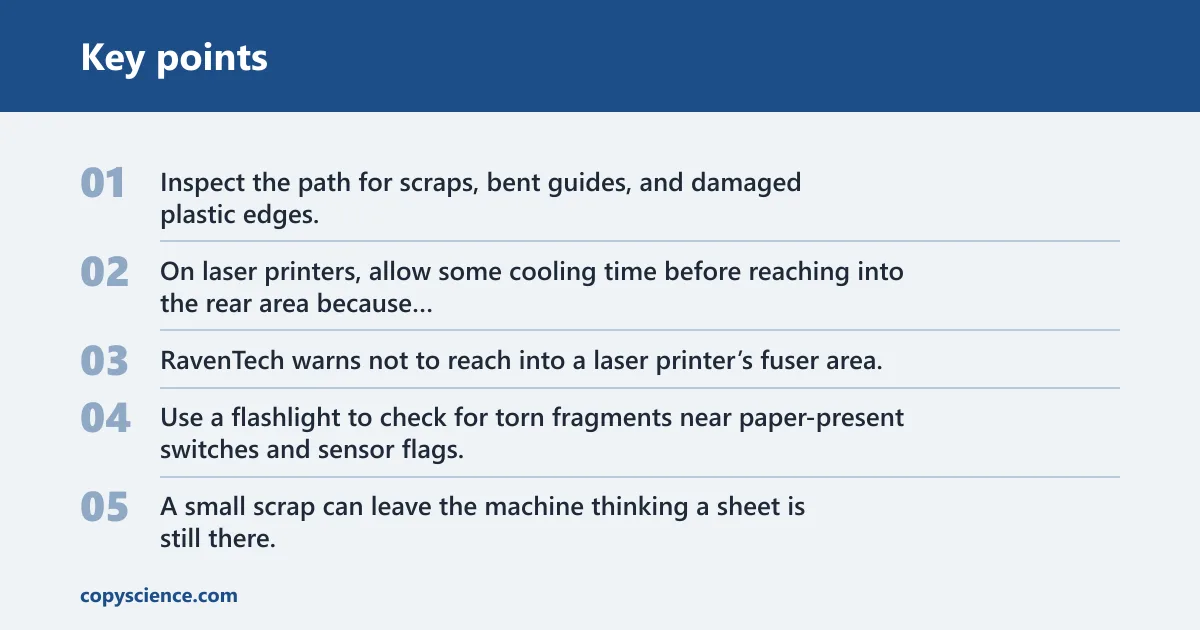
Inspect the path for scraps, bent guides, and damaged plastic edges. On laser printers, allow some cooling time before reaching into the rear area because the fuser can run hot. RavenTech warns not to reach into a laser printer’s fuser area. That warning is practical, not optional.
Look for leftover scraps and sensor flags
Use a flashlight to check for torn fragments near paper-present switches and sensor flags. A small scrap can leave the machine thinking a sheet is still there. If the jam message appears at power-on, a stuck sensor flag may be more likely than a physical blockage. Clear only what you can see and reach safely.
Inkjet and laser differences
Inkjets need careful paper removal because rough pulling can damage the paper path or printhead area, and some designs place the printhead in or near the cartridge assembly. Laser printers add a heat hazard at the fuser, especially on rear-access jams. The safe move differs by model, so follow the machine’s access points rather than forcing the same method on both types.
How do I stop my printer from jamming so much?
Prevent repeated jams by dealing with the most likely cause first, then the next one. Use the right paper, keep it dry and flat, seat the tray properly, clean the rollers and paper path as directed by the manual, and inspect the sensors if the machine reports a jam with no sheet in sight. Persistent repeats mean the printer needs a deeper check.
Use a short prevention routine
- Verify paper size and type before loading.
- Fan the stack lightly if the sheets cling together.
- Keep the stack below the tray limit.
- Set the guides against the stack without bending it.
- Check the rear path and duplex route for scraps after any jam.
- Clean rollers if they look dusty or shiny.
Control the paper environment
Humidity makes paper absorb moisture, curl, and feed unevenly. Dry paper feeds more predictably, and storage in a room with moderate temperature helps reduce warping. Keep reams in their packaging until needed, and do not leave opened paper near a damp wall, open window, or steam source.
When is a paper jam a sign of a hardware problem?
A repeated jam can point to hardware when the same location fails again and again after correct loading and clean paper. Worn rollers, a damaged path, a stuck sensor flag, or a failing duplex unit can all cause repeat errors. If the printer jams with a known-good stack and the same fault returns, stop forcing paper through it.
What usually means service is needed
Stop and service the printer if jams keep returning after you have checked the tray, paper quality, rollers, and path; if the printer reports a jam at startup with no paper visible; if a sensor flag appears stuck; or if the rear area of a laser printer is involved and you are not sure the fuser has cooled. That is the point where deeper parts need inspection.
Frequently asked questions
What causes printer paper jams most often?
The most common causes are loading errors, poor paper condition, and worn or dirty feed rollers. Debris in the path and sensor faults follow close behind. Start with the tray and paper stack first, because those problems are the easiest to confirm and the least risky to fix.
Can bad paper cause printer jams?
Yes. Curled, crumpled, damp, or cut paper can feed poorly and jam more often. The same source recommends dry paper, moderate storage temperature, and avoiding staples and paper clips. Paper quality alone is not the only cause, but it is one of the first things to rule out.
Why does my printer keep jamming even after I clear it?
Repeated jams usually mean the real cause was not removed. A torn fragment, a misread sensor, a stuck flag, or worn rollers can keep triggering the same fault. If the same spot jams again and again, inspect the path and sensors before feeding another stack.
How do dirty rollers cause paper jams?
Dirty rollers lose grip and may slip instead of pulling one sheet cleanly. That can cause double-feeds, partial feeds, or crooked feeding. Ink and dust buildup change the roller surface, so cleaning can help. If the surface is worn smooth, replacement is the better fix.
What should I check first when paper gets stuck in a printer?
Check the paper tray, the visible feed path, and any rear access area your model allows. Remove jammed paper gently, then look for scraps that could trigger a false warning. On laser printers, let the rear area cool before touching it. On inkjets, avoid rough pulling near the printhead area.
Does humidity make printer paper jam more often?
Yes. Humid air can make paper absorb moisture, curl, and stick together, which raises jam risk. Dry paper feeds more reliably. Store paper in a room with moderate temperature and keep the ream closed until you need it. Damaged paper should not go back into the tray.