All in One Printer Features: What Can You Actually Do?

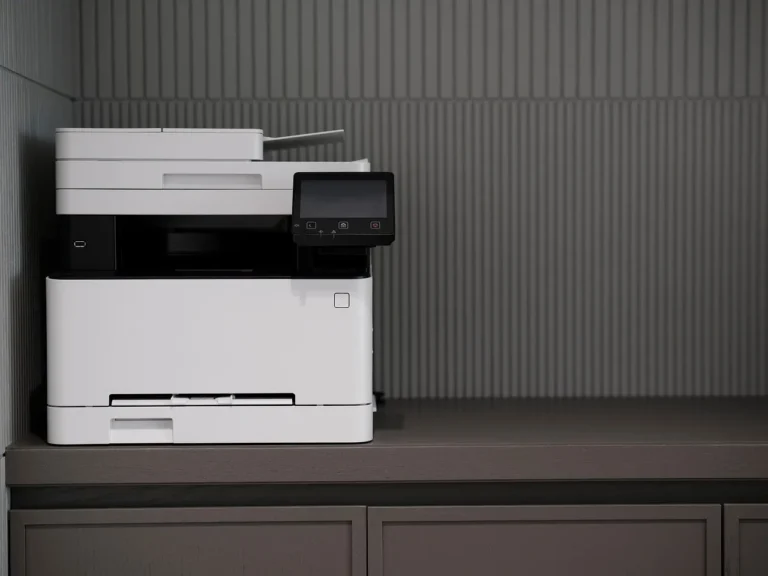
An all-in-one printer can print, scan, and copy. Many models also add fax, automatic document feeders, duplex printing, and Wi‑Fi. For home use, the real choice is usually which two extras matter, and which ones you can skip. Choose poorly, and you pay for functions you never touch, or miss the feature that makes school forms, receipts, or handouts easier.
What can an all in one printer do?
An all-in-one printer can handle three jobs at home: print, scan, and copy. Some models also add fax, which shows up more often on office-oriented machines than on basic home units. The better question is not “does it do everything?” It is “which extra functions match the paper tasks you actually have?”
Print, scan, copy, and sometimes fax
Print means sending files or photos to paper. Scan means turning a paper page into a digital file. Copy means making a paper duplicate without opening a computer. Fax is a separate send-and-receive function that still needs a phone line on models that include it.
That set covers most home jobs: homework sheets, shipping labels, forms, recipes, tax papers, and household records. Fax matters for a smaller group, usually people who still deal with legacy office forms or services that ask for it.
What those functions mean at home
A flatbed scanner lets you copy or scan one page at a time, including an ID card, a book page, or a fragile document. An automatic document feeder, or ADF, handles stacks of pages faster. Duplex printing prints on both sides of paper, which cuts paper use for handouts and long drafts.
How printing works on home all-in-one printers
Printing is the feature most buyers notice first, but output type matters more than the label on the box. Inkjet models are usually better for mixed home use and photos; laser models are usually stronger for crisp text and larger document runs. Print speed is often listed in pages per minute, or ppm, but real home jobs are usually slower than the headline number.
Inkjet vs laser output
Inkjet printers spray liquid ink. They are common in home all-in-ones because they can handle text, graphics, and photos in one machine. Laser printers use toner powder and heat. They usually produce sharp text and handle document-heavy printing well, but photo output is less flexible on many models.
For a family that prints school sheets and the occasional photo, an inkjet often fits better. For a home office that prints many text pages each week, a laser all-in-one may cost less to run over time, especially when the duty is mostly black-and-white documents.
Duplex printing and print speed
Duplex printing means the printer can print on both sides of the paper automatically. Many home models include it, but not all do. If you print long handouts, draft reports, or packet-style forms, duplex printing saves paper and avoids flipping stacks by hand.
Print speed is usually listed in ppm. A common home all-in-one print speed is about 8 to 20 ppm for black text, though photo pages and duplex jobs usually take longer. That number helps compare models, but it does not tell you how fast the first page lands or how fast a photo prints.
Photo printing vs document printing
Do all in one printers print photos well? Some do, but not all. Photo-friendly inkjets usually support borderless printing and finer droplet control, which helps with family pictures and craft projects. Basic office-style models can print photos, yet the color balance and detail often favor documents instead.
Say your child needs a 4×6 photo for a school project. A photo-capable inkjet can usually print it directly from a phone or memory source, but a plain text-focused laser all-in-one is not the right tool for that job. The tradeoff is speed and text sharpness versus photo flexibility.
What can you scan with one?
A scanner lets you turn paper into a file you can save, email, or store in cloud folders. Flatbed scanners are best for books, ID cards, receipts, and anything that should lie flat. ADF scanning is better for stacks of pages. Scan resolution is measured in dpi, and the right setting depends on whether you want readable documents or detail-heavy images.
Flatbed scanners for books, IDs, and flat pages
A flatbed scanner has a glass bed and a lid. You place the page face down and scan one item at a time. That works well for a passport-style ID, a report cover, a single worksheet, or a page from a book that should not be bent through rollers.
For home use, flatbed scanning is the safest choice for awkward items. It also helps when pages are wrinkled, torn, or stapled. The limitation is speed, because each page must be placed manually.
ADF or sheetfed scanning for multi-page jobs
An ADF, or automatic document feeder, pulls pages through the scanner. An automatic document feeder commonly holds about 20 to 50 sheets, though exact capacity varies by model. That is useful for multi-page scans, copies, or send-as-PDF tasks because you can load a stack and let the feeder work through it.
Some ADFs support single-pass duplex scanning, which scans both sides of each sheet in one pass. That matters for contracts, homework packets, and tax papers. If duplex scanning is missing, the machine may scan one side, then ask for a second pass or manual page flipping.
Scan resolution and scan destinations
Scan resolution is usually listed in dpi. For text documents, 300 dpi is often enough for readable PDFs and file sizes that stay manageable. For photos or detailed images, 600 dpi or higher gives more detail, but it also creates larger files and slower scans.
Many all-in-ones can scan to PDF, email, or cloud destinations through software or the printer panel. That makes it easier to turn paper into a file for homework, receipts, or records. Some basic machines do not offer direct scan-to-email or direct scan-to-cloud without a computer.
A common first-timer mistake is scanning a multi-page form at photo settings because “higher must be better.” That can create a huge file that is awkward to upload or send. For most paper documents, 300 dpi is the practical starting point.
How copying works without a computer
Copying is one of the most overlooked all-in-one functions. It lets you make a duplicate directly from the control panel, with no computer or file transfer involved. Most home users care less about advanced settings than about speed, legibility, and whether the machine can make black-and-white and color copies.
Color and black-and-white copies
Most all-in-ones can make black-and-white copies, and many can make color copies too. That matters for school work, IDs, forms, and household papers where color highlights or logos need to stay visible. Black-and-white copying is usually faster and cheaper.
If the goal is a quick duplicate of a utility form, black-and-white is usually enough. If the goal is a permission slip with a colored school seal or a copy of a color flyer, the color setting matters more.
Reduce, enlarge, and copy speed
Many models let you reduce or enlarge a copy by percentage. Many models let you reduce or enlarge a copy from about 25% to 400%, though exact limits vary. That is useful for fitting a large page onto one sheet, enlarging a receipt for readability, or shrinking a handout for filing.
Copy speed is often listed separately from print speed. It matters when you are copying several pages from a stack, especially through an ADF. Without an ADF, the practical limit is how quickly you can place each page on the glass.
All-in-one printer feature matrix
This matrix maps common features to real home tasks. It also separates what a feature does from what it does not do, because many buyers find out too late that a machine can print and scan, but only one page at a time or only from a computer. Use it to match the machine to the job.
| Feature | What it does | Example task | Typical home value | Common missing option | Best-fit user segment |
|---|---|---|---|---|---|
| Outputs text and images on paper | Homework sheets, labels, recipes, forms | Core function for every home user | Borderless photo printing or fast duplex | All home users | |
| Inkjet print | Uses liquid ink for mixed content | Color worksheets and family photos | Better for mixed document and photo use | Lower running cost on heavy text jobs | Families, students, photo users |
| Laser print | Uses toner for sharp text output | Weekly forms and long text packets | Good for document-heavy homes | Photo-friendly output on many models | Remote workers, heavy document users |
| Duplex printing | Prints both sides automatically | Long drafts and multi-page handouts | Saves paper and manual flipping | Available on some, not all, home models | Students, home offices |
| Flatbed scanner | Scans one flat item at a time | IDs, books, receipts, fragile pages | Useful for odd-sized or delicate items | Fast multi-page feeding | Occasional users, families |
| ADF | Feeds multiple pages through the scanner or copier | Multi-page PDFs and batch copies | Big time saver for stacks of paper | Single-pass duplex on many basic models | Students, remote workers |
| Scan resolution | Sets detail level in dpi | 300 dpi documents, 600 dpi photos | Controls file size and clarity | High-resolution scan speed | Users who save files often |
| Scan destinations | Sends scans to PDF, email, or cloud | Scan a receipt to email or a folder | Reduces file-handling steps | Direct cloud setup on basic models | Remote workers, students |
| Copy | Makes paper duplicates without a computer | Homework copies and form duplication | Useful for quick paper-only jobs | Batch copying without an ADF | Families, occasional users |
| Wireless connectivity | Prints or scans over Wi‑Fi or Wi‑Fi Direct | Print from a laptop or phone | Removes cable dependence | Stable setup on every home network | Most home users |
| Mobile app and software | Supports phone scanning, alerts, setup, and troubleshooting | Scan a bill to cloud storage | Makes setup and routine tasks easier | Easy app use on older printers | Phone-first users |
| Fax | Sends documents over a phone line | Legacy office forms or fax-only services | Limited value for most homes | No phone-line setup, on many home models | Office-heavy households |
| Tank ink system | Uses refillable ink tanks with high page yield | Frequent color printing and school packets | Lower running cost for heavy use | Smaller machine size and lower entry price | High-volume home users |
| Cartridge system | Uses replaceable ink or toner cartridges | Occasional letters and receipts | Simple and common for light use | Lower page yield than tanks | Occasional users |
Which features matter most for home use?
For home use, the most useful features depend on your paper flow. Students usually need print, scan, copy, duplex printing, and an ADF. Remote workers often need scan-to-PDF, Wi‑Fi, mobile printing, and an ADF. Occasional users can usually live with a simpler machine if it is easy to wake up and operate.
Students and homework
Students benefit from scan-to-PDF, copy, duplex printing, and at least a basic ADF if they handle long packets. A flatbed scanner is still useful for IDs, art pages, and odd-sized sheets. If the printer can scan from a phone, that helps when a laptop is not nearby.
For school use, a common short list is: print, scan, copy, duplex printing, and wireless support. Fax is usually unnecessary. A 20-sheet ADF may be enough for homework pages, but larger stacks are easier with a 30 to 50 sheet feeder.
Remote workers and home office tasks
Remote workers usually get the most value from scan-to-email or cloud, Wi‑Fi, duplex printing, and an ADF with single-pass duplex if they handle contracts or expense reports. A laser model may suit text-heavy work, while an inkjet tank model may suit mixed color documents and occasional photos.
- Check your paper load. Count the pages you usually handle in one job. If you often scan or copy 10 or more pages at once, put ADF support near the top of the list.
- Match the output type. Choose inkjet for mixed text, color, and photos, or laser for mostly text. That choice affects print quality, running cost, and how the machine handles long jobs.
- Verify scan destinations. Look for scan to PDF, email, or cloud if you want to move paper into digital folders fast. If you plan to use a phone, confirm app support and mobile scanning.
- Confirm paper handling. Check duplex printing, duplex scanning, and ADF capacity separately. A printer can have one and miss the others.
Occasional users and family use
Occasional users may care more about simple setup, easy copying, and a machine that is ready when needed. Wireless support helps, but a direct USB connection can still be fine if the printer stays in one place. An app with maintenance alerts can help when the device sits unused for long stretches.
Suppose a family only prints a few forms each month and scans a receipt to a phone once in a while. A compact inkjet with Wi‑Fi, a flatbed scanner, and basic copy controls may be enough. Paying extra for fax or a large ADF would add little value.
Can an all in one printer print, scan, copy, and fax?
Yes, many all-in-one printers can print, scan, and copy, and some include fax as well. Fax is more common on office-oriented models, and it usually needs a working phone line. For most homes, fax is the least important of the four functions.
The main difference is that fax changes the use case, not the core home workflow. If you do not need to send pages over a phone line, the feature can sit unused while adding cost, size, and setup steps.
Can you scan to email or phone with an all in one printer?
Yes, many models can scan to email, a phone, or cloud storage, but the exact path depends on the printer software and app support. Some printers send files directly from the panel. Others require a phone app or computer to finish the transfer.
For home use, scanning to a phone is one of the most practical features because it turns a paper receipt or form into a shareable file fast. The limitation is that some basic printers support scanning only through a desktop driver, not a direct mobile workflow.
Do all in one printers need Wi‑Fi to use all features?
No. An all-in-one printer does not need Wi‑Fi to print, scan, or copy. Wi‑Fi mainly adds wireless printing, mobile printing, and easier sharing across devices. If the machine has a USB connection, you can still use the core functions without a wireless network.
Wi‑Fi becomes more useful when more than one person prints from different devices or when you want phone-based scanning and setup. Wi‑Fi Direct can help in some cases because it lets a phone connect straight to the printer without joining the home network.
Can you use an all in one printer without a computer?
Yes, many all-in-one printers work without a computer for copying and basic printing from the control panel or a phone. You can often make copies, print from mobile apps, and scan to a device or cloud destination. The exact set of no-computer functions depends on the model.
What to check is the control layout and app support. A touchscreen or simple button panel helps with stand-alone copying, and mobile printing support helps when you want to print a file from a phone. Without those, some tasks become much less convenient.
What features should I look for in an all in one printer for home use?
Start with the tasks you actually do. For most homes, that means print, scan, copy, and wireless support. Add duplex printing if you print long documents, add an ADF if you handle multi-page scans or copies, and choose a photo-friendly inkjet only if photo quality matters.
Then check the limits: ADF capacity, whether duplex scanning is included, whether scan-to-phone works, and whether the ink or toner system fits your budget and print volume. That combination matters more than a long feature list.
Frequently asked questions
What can you actually do with an all in one printer?
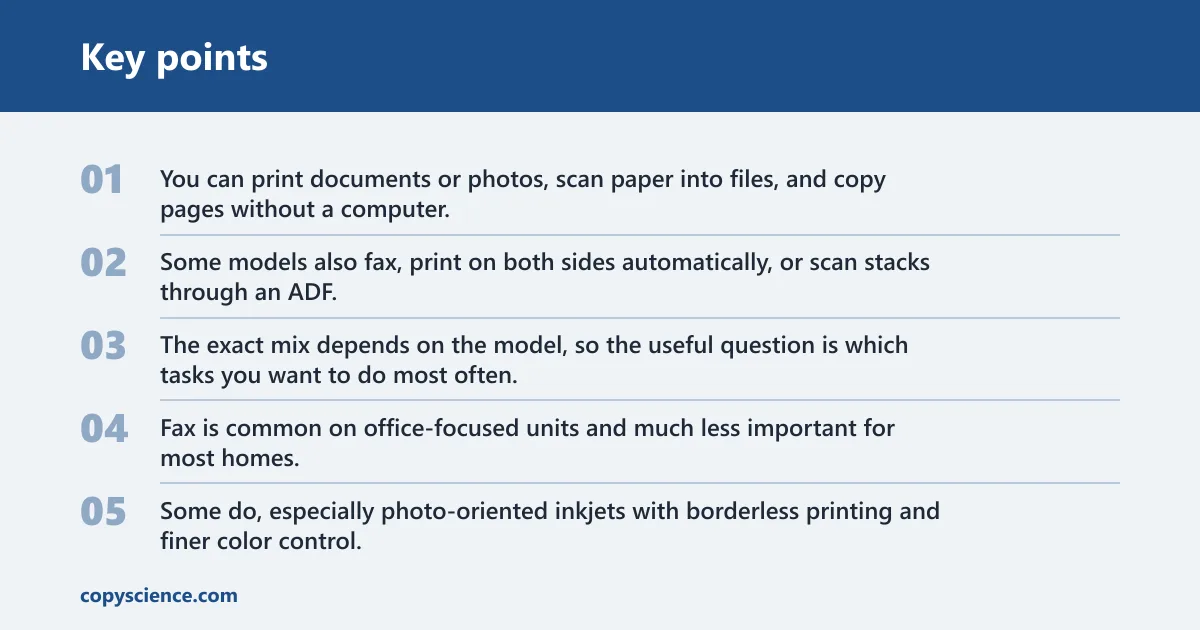
You can print documents or photos, scan paper into files, and copy pages without a computer. Some models also fax, print on both sides automatically, or scan stacks through an ADF. The exact mix depends on the model, so the useful question is which tasks you want to do most often.
Can an all in one printer print, scan, copy, and fax?
Yes, some models do all four jobs. Fax is common on office-focused units and much less important for most homes. If you do not need a phone-line fax feature, you can usually choose a simpler model with better print, scan, or copy support for the same budget.
Do all in one printers print photos well?
Some do, especially photo-oriented inkjets with borderless printing and finer color control. Many basic home all-in-ones print acceptable snapshots, but they are not all equal. Laser models are usually better for text than for photo work, so photo quality should be checked model by model.
Can you scan to email or phone with an all in one printer?
Often yes, but not on every model. Some printers scan directly to email, cloud storage, or a phone app. Others require a computer to finish the transfer. If phone scanning matters, confirm the app supports that workflow before you buy.
What is the difference between an all in one printer and a regular printer?
A regular printer prints only. An all-in-one adds scanning and copying, and sometimes fax. That makes it more useful for home paperwork, school packets, and receipts, especially if you want one machine to handle both paper output and paper-to-file tasks.
Do all in one printers need Wi‑Fi to use all features?
No. Wi‑Fi is helpful for mobile printing and shared use, but you can still print, scan, and copy without it on many models. A USB connection or direct panel controls may be enough if the printer stays in one room and only one person uses it.