Are Printers and Copiers the Same Thing or Is There a Difference?

Printers and copiers are different devices, even though many home “copiers” are actually multifunction printers that print, scan, and copy through the same scanner path. Buy the wrong one, and you can end up with slow duplex copying, a small feeder, or a machine that needs a PC for a job you expected to do at the glass. This guide breaks down the differences and where that printer-plus-scanner setup falls short at home.
How they overlap and where they differ
No. A printer sends digital files to paper, while a copier duplicates a paper original through a scan path and print engine. The overlap happens because many home devices combine printing, scanning, and copying in one unit, so the copy function can look like a separate machine when it is really a workflow inside the same device.
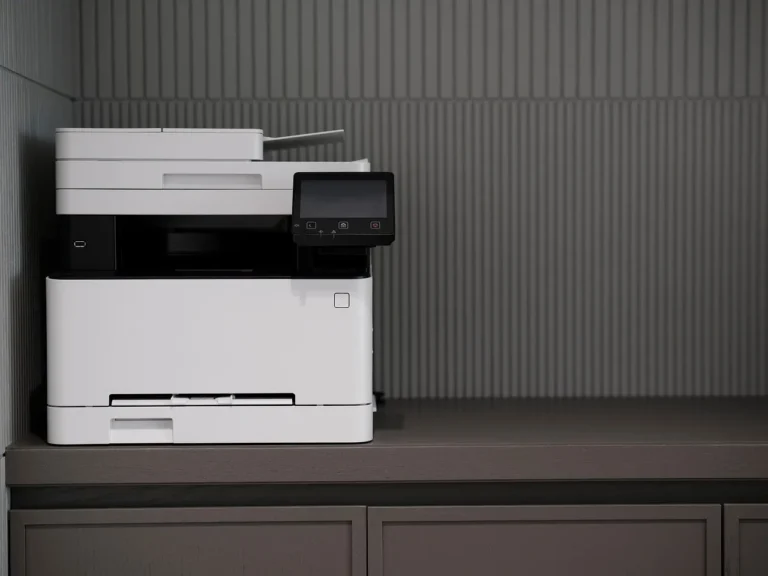
Best Buy’s category treatment reflects that overlap: it groups printers with scanner and copier functions as one product type and labels them as all-in-one printers. That label helps when you shop, but it does not mean every printer can copy, or that every copier handles printing the same way a printer does.
Where the functions overlap
A copier usually depends on the same core hardware a multifunction printer already has: a scanner and a print engine. The scanner reads the original, then the device prints the image onto fresh paper. In that sense, a copier is often a scan-and-print workflow built into a printer or all-in-one, not a separate magic function.
Where they stop being the same
The difference shows up in use. A printer can be single-function and work only from a connected device or print queue. A copier can duplicate a sheet directly from a scan bed or feeder without asking you to send a file first. Office copiers are often larger than home printers because they are typically built for higher page volumes and faster paper handling.
What is the difference between a printer and a copier?
A printer is built to produce pages from digital files. A copier is built to duplicate an existing paper document by reading it and printing a second copy. On many home devices, the copier function sits on top of the scanner, so the distinction is less about shape and more about the path the original takes.
Printer: digital file to paper
Printers take a document from a connected computer, phone, or print queue and place it on paper. They may be inkjet or laser. A single-function printer does only that job, while a multi-function device adds scanning and copying controls. If you need only output from digital files, printing alone may be enough.
Copier: paper original to paper duplicate
Copiers start with paper in hand. You place the original on a flatbed or in a feeder, and the machine creates a duplicate. That is why copier tasks depend on scan quality, scan speed, and paper handling. A copier that handles stacks well may still be overkill for a home that only prints a few pages a week.
Where the scanner fits into the copy path
The scanner is the core step behind copying on many printers. It captures the document as an image, then the device sends that image to the print engine. Flatbed scanners use a glass platen and are better for books, IDs, and fragile originals. Automatic document feeders, or ADFs, generally move multiple pages through faster, which matters when you copy more than a single sheet.
Can a printer make copies without a computer?
Yes, but only if it is a multifunction device with copy controls. A printer that includes a scanner can copy straight from the machine panel, using the scanner and print engine without a computer. A single-function printer cannot do that because it has no scanner path to read the original.
That difference matters at home. If you need to copy a school form, an insurance card, or a signed sheet while the PC is off, a copy button on the device saves steps. If the machine only prints, you must scan elsewhere and send the file back through a computer or phone app.
Why copy buttons matter at home
Copy controls are the shortcut. They let you set quantity, start a copy, and often choose basic options without opening software. On many consumer all-in-one models, the flatbed scanner and a few front-panel buttons are enough for one-page copying. For stack copying, the ADF matters more than the menu layout.
- Place the original on the glass or in the ADF.
- Select copy mode on the device panel.
- Choose color or black-and-white if available.
- Set the number of copies.
- Press start and check the first output page.
Printer copier decision table
Use this table to match the task to the hardware. Pick the device by page type, feed method, and how often you need to copy without a computer.
| Task | Required parts | Typical limitation | Best fit |
|---|---|---|---|
| Single pages | Flatbed scanner, print engine, copy controls | Manual placement for each page slows the job | Home all-in-one printer |
| Stacks of pages | ADF, scanner, print engine | Many home models have small ADF capacity or no duplex feeding | Office-oriented all-in-one or copier |
| Photos | Flatbed scanner, photo-capable print engine | Feeder rollers can mark or skew glossy prints | Inkjet all-in-one |
| IDs and fragile originals | Flatbed scanner | ADF can bend or damage small, stiff, or delicate items | All-in-one with a glass platen |
| No-computer copying | Scanner, copy buttons, print engine | Single-function printers cannot copy on their own | Multifunction printer |
| Shared-family use | Printer, scanner, copy controls, network connection | Small paper trays and slow scan paths create wait times | All-in-one with a larger tray and ADF |
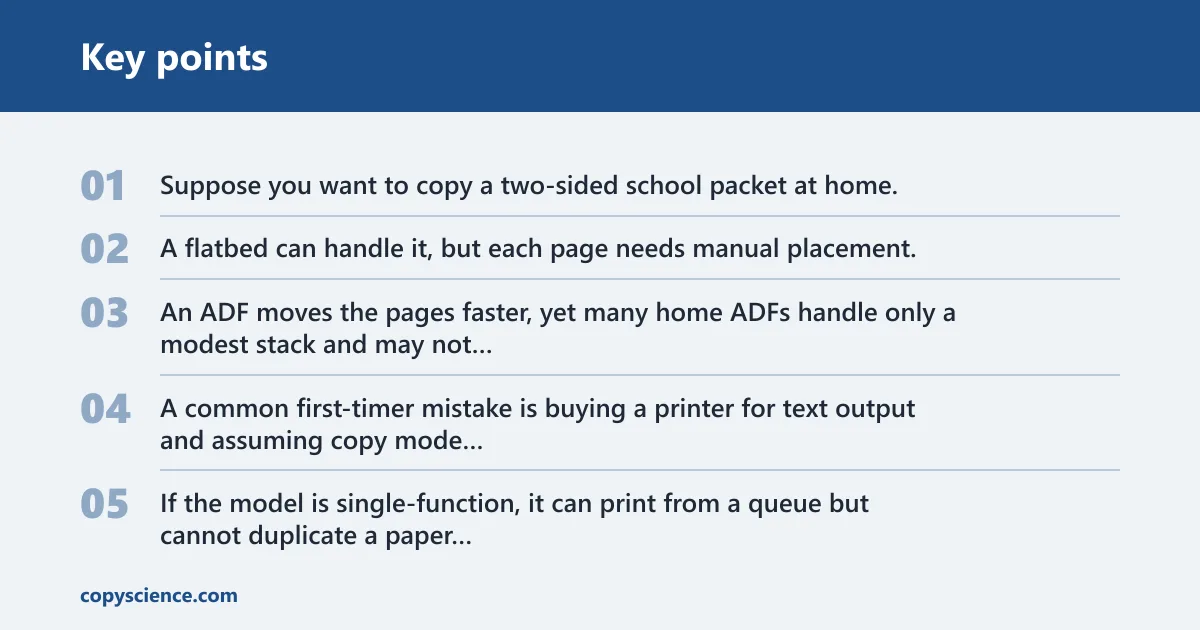
Suppose you want to copy a two-sided school packet at home. A flatbed can handle it, but each page needs manual placement, so the process takes longer. An ADF moves the pages faster, yet many home ADFs handle only a modest stack and may not scan duplex as fast as a larger office unit.
A common first-timer mistake is buying a printer for text output and assuming copy mode comes with it. If the model is single-function, it can print from a queue but cannot duplicate a paper sheet by itself. If the model is an all-in-one, the copy path is there even when the computer is shut down.
Which is better for home use?
Neither is always better. A printer is enough if you only need to print files from a phone, laptop, or desktop. An all-in-one makes more sense if you also need occasional copying and scanning. A true office copier is usually too much for a home unless you handle large packet runs or shared-document work often.
When a printer is enough
Choose a printer when your home use is mostly digital. That can be homework sheets, shipping labels, forms, and routine documents. Inkjet printers are common in consumer all-in-one models and fit photo or mixed-use needs, while laser printers are often faster for text-heavy printing. If copying is rare, adding a scanner may be enough.
When an all-in-one makes more sense
Pick an all-in-one printer when you want one box to print, scan, and copy. It saves space in a home setup and avoids extra equipment. The tradeoff is that home models often have slower scan paths and smaller feeders than office machines, so repeated multi-page copying takes more time.
When a true office copier is too much
Office copiers are generally built for higher page volumes, a larger paper supply, and faster feeding. That helps in shared settings, but many homes do not need that scale. If you only make a few copies at a time, an all-in-one with a flatbed and maybe an ADF is usually the better fit.
Why does my printer copy but not print?
Copying can still work when printing fails because the copy path and the print path are different. The scanner may read the original just fine, while the print job stalls because of paper, driver, connectivity, or queue problems. That split is common on multifunction devices and can point you to the right fix faster.
Common reasons print jobs fail while copy jobs still work
If copies come out but print jobs do not, check the print queue, the connection to the device, and the paper path first. A blank or paused queue can block output from a computer while the copier controls still trigger local copying. On some units, low ink or toner can also stop print output before it affects copying behavior.
What to check first
Start with the basics: paper loaded correctly, no jam in the tray or rear path, and the device selected as the active printer on your computer or phone. Then try a direct copy from the glass or feeder. If that works, the hardware is probably fine and the issue sits in the print side, not the scanner side.
Frequently asked questions
Are printers and copiers the same thing?
No. Printers output pages from digital files, while copiers duplicate paper originals through a scan-and-print process. Many home all-in-one devices combine both jobs, so the functions sit in one machine. That is why the terms get mixed together, even though the workflow is different.
Is an all-in-one printer also a copier?
Usually, yes. An all-in-one printer combines printing, scanning, and copying, and it is often marketed as a printer, scanner, copier combo. The copy function comes from the scanner and the print engine working together, which is why these devices can duplicate paper without a computer.
Do copiers print, or do they only make copies?
Many copiers do print, but not all of them are used the same way as a home printer. Office copiers often print from a network or USB source and also copy. A home all-in-one may print and copy, while a dedicated copier may be built more for copying volume than everyday printing.
How do you use the copier function on a printer?
Put the original on the flatbed or in the ADF, choose copy mode on the control panel, set quantity if needed, and press start. For books, IDs, and fragile originals, use the flatbed. For multi-page jobs, use the ADF if the device has one. Check the first page before running a larger set.