
Why Is My Canon Printer Not Connecting to WiFi Network?

A Canon printer that will not join Wi‑Fi usually fails for one of a few common reasons: a 2.4 GHz vs 5 GHz band mismatch, a wrong password, router security or feature incompatibility, or a stale IP address. If you skip the cause, you waste time and can leave the printer offline even though the network looks fine. This guide walks you through a Canon-specific diagnosis tree to isolate each failure mode and fix it in the right order.
Pinpoint the type of wi‑Fi connection problem
Start by splitting the problem into three cases: the printer never joins the network, it joins and then drops later, or it appears connected on the printer but not on a computer. That split points you to different fixes. If every device on the network has trouble, the router is the likely problem; if only the printer fails, focus on the printer, band, or password.
Canon Wi‑Fi failure matrix
| Symptom | Likely cause | What to check first | Fastest fix |
|---|---|---|---|
| Network not found | 2.4 GHz vs 5 GHz mismatch, hidden SSID, or weak signal | Look for the 2.4 GHz network name, including any 5G suffix on the faster band | Select the 2.4 GHz SSID and move the printer closer during setup |
| Password rejected | Wrong SSID, case-sensitive password error, or changed router credential | Confirm the exact network name and retype the password carefully | Forget the network on the printer and enter the current password again |
| Connects then drops | Router compatibility issue, weak signal, or DHCP changed the printer IP | Check the Wi‑Fi light and print a network report | Restart router and printer, then reserve the printer’s IP address |
| Printer online but not visible on PC | Driver, discovery, or local network mismatch | Confirm the printer IP address on the report and the PC’s network | Re-add the printer using the IP address or reinstall the printer entry |
| Works on phone but not laptop | Computer joined a different band, guest network, or stale printer entry | Check that the laptop is on the same SSID as the printer | Remove and add the printer again on the laptop |
Check the band and network name
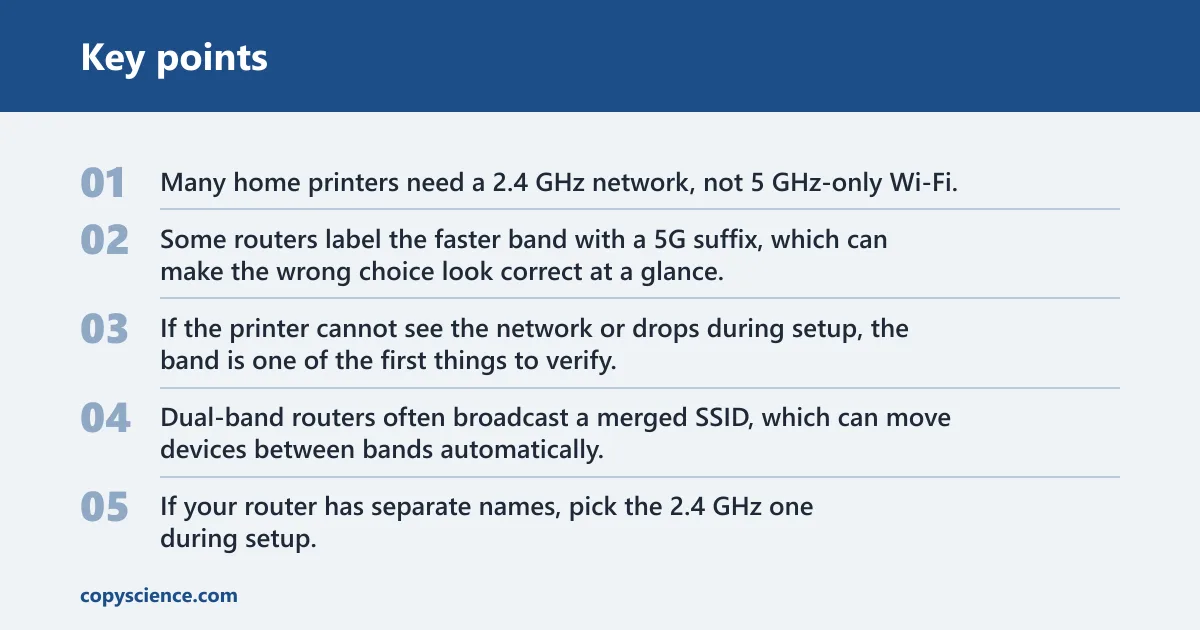
Many home printers need a 2.4 GHz network, not 5 GHz-only Wi‑Fi. Some routers label the faster band with a 5G suffix, which can make the wrong choice look correct at a glance. If the printer cannot see the network or drops during setup, the band is one of the first things to verify.
Dual-band routers often broadcast a merged SSID, which can move devices between bands automatically. That is convenient for phones, but some Canon printers react badly when the router shifts them between 2.4 GHz and 5 GHz. If your router has separate names, pick the 2.4 GHz one during setup.
A guest network can also cause trouble. The printer may join it, yet local printing from a home PC can still fail if the guest network keeps devices isolated from one another.
How do you reconnect a Canon printer to Wi‑Fi from the printer panel?
Use the printer’s wireless setup menu and choose the standard setup path first unless you know the router supports WPS. Canon menus may call this LAN settings, Wireless LAN setup, or Wi‑Fi Setup. PIXMA, MAXIFY, and SELPHY models can label the path differently, but they all lead to the same task: select the network and enter credentials.
-
Open the wireless menu. On the printer control panel, look for LAN settings, Wireless LAN setup, or Wi‑Fi Setup. Model menus vary, so check the wireless or network section rather than assuming one exact label.
-
Choose standard setup. This option scans for nearby networks and lets you select the correct SSID. It is the safest starting point when you are unsure whether the router supports WPS.
-
Select the right SSID. Pick the 2.4 GHz network name, not the 5 GHz band with a 5G suffix. If the printer offers a guest network and a main network, choose the main one unless your setup specifically requires guest access.
-
Enter the password carefully. Type the Wi‑Fi password exactly as it appears, including upper and lower case. A router password changed after a reset can also make old saved credentials fail, even if the network name looks familiar.
-
Confirm the connection. A solid Wi‑Fi light usually means the printer has joined the network. A blinking Wi‑Fi light can mean it is still searching for a network or finishing setup.
Picture a PIXMA printer that sees the correct SSID but refuses to join after a router reset. The problem may not be signal strength at all. The router may now use a new password, so the printer keeps trying the old one.
Can WPS fix the connection?
WPS can fix a Canon Wi‑Fi problem when the router supports it and the printer supports WPS pairing. Push-button pairing is the usual method, but some models may also offer PIN-code pairing. The WPS window is short, so both devices need to be ready before you start.
-
Check router support. Make sure the router has WPS enabled. If it does not, skip this method and use standard wireless setup instead.
-
Start the printer pairing. On the Canon panel, open the wireless setup menu and choose the WPS option if it appears. Some models will ask for push-button or PIN-code pairing.
-
Press the router button. Hold the router’s WPS button for about 3 to 5 seconds, then finish the printer prompt within about 2 minutes. If you wait too long, the pairing window closes and the attempt fails.
-
Retry with a different method. If WPS fails twice, use standard setup. That avoids guessing whether the router, the printer, or the pairing window caused the error.
Say your MAXIFY printer is 12 feet from the router and still cannot complete WPS. Distance is not always the issue. A router with WPS turned off will fail no matter how close the printer sits.
Why does it connect, then go offline?
If the printer joins Wi‑Fi and then turns offline later, treat it as a stale connection problem, not a setup problem. The printer may have received an IP address that changed after the router restarted or renewed leases. A restart cycle can clear that state and give the printer a fresh address.
Restart printer, router, and modem
-
Turn off the printer. Use the power control and wait 10 seconds after turning it off. That pause helps clear temporary network state inside the printer.
-
Unplug the router. Disconnect the router, and if you have a separate modem, unplug that too. Leave the router unplugged for 30 seconds so the network clears stored session data.
-
Power devices back on. Start the modem first, then the router, then the printer. Let the network finish booting before you try printing again.
-
Check for a fresh IP. If the printer works after the restart, the old issue was likely a stale IP address or a brief router glitch. If it fails again, move to the network report and reservation steps.
A common first-timer mistake is to enter the wrong Wi-Fi password on the printer’s setup screen. That can help a weak wireless state, but it will not fix a router that reassigned the printer’s IP address.
Read the Wi‑Fi light
The Wi‑Fi indicator light gives a quick status clue. A solid light often means the printer is already connected. A blinking light usually means it is searching for a network or trying to complete setup. Use that signal with the printed report rather than guessing from the screen alone.
Printer network report
The printed network configuration or status report can show whether the printer is connected, which IP address it received, and often the MAC address as well. That report matters because the printer can be online from its own point of view and still be unreachable from a computer if the address changed or the PC is on a different network.
What to check on the report
- IP address. Confirm that the printer has an address on your home network, not a blank or unusual one.
- MAC address. Use this when you set a DHCP reservation in the router admin panel.
- Connection state. Look for whether the printer reports connected or offline.
- SSID name. Make sure it matches the 2.4 GHz network you intended to use.
Use the report to split the problem
If the printer report shows connected but your PC cannot see it, the issue is often on the computer side or in the local network path. If the report shows a bad or missing IP address, go back to the router and restart sequence. That is faster than repeating setup from scratch.
Why won’t my Canon printer connect to Wi‑Fi after a router change?
A router change often breaks a Canon printer because the old SSID, password, security mode, or band settings no longer match. A new router may also merge bands, rename the network, or change from a supported security mode to one the printer does not like. Re-enter the new details instead of assuming the old network still exists.
Check the router’s new name carefully. A 2.4 GHz network and a 5 GHz network may now share similar names, with the faster one marked by a 5G suffix. If the router was reset, the saved printer password may also be stale, even if the SSID looks familiar.
Static IP or DHCP reservation
If the printer keeps going offline after it connects, reserve its IP address in the router admin panel or assign a manual address that fits your network range. A DHCP reservation tells the router to hand the printer the same address each time, which helps prevent recurring offline status after restarts.
-
Find the printer address. Use the printed network report to note the printer’s current IP and MAC address. The MAC address is the safer identifier for a reservation.
-
Open router settings. In the router admin panel, look for DHCP reservation, address reservation, or connected devices. The exact label varies by brand.
-
Create the reservation. Tie the printer’s MAC address to a fixed IP within your home network range. That keeps the printer from changing addresses after renewals or power loss.
-
Recheck visibility. After saving the reservation, restart the printer and test from the computer again. If the printer stays online, the address change was the real fault.
Frequently asked questions
Why is my Canon printer not connecting to my wifi network?
The usual cause is one of four things: a 2.4 GHz versus 5 GHz mismatch, the wrong password, router compatibility issues, or a stale IP address. Check the SSID first, then the password, then the router’s band and security settings, and finally the printer’s network report.
Does my Canon printer only work on 2.4 GHz Wi‑Fi?
Many home printers need a 2.4 GHz network, and some Canon guidance says many Canon printers only support that band. A 5 GHz-only network can fail even when the router signal is strong. If your router uses a 5G suffix for the faster band, choose the other network name.
What if my Canon printer sees the network but rejects the password?
Check the exact SSID, because the printer may be trying to join a guest network or the wrong band. Then retype the password carefully, since Wi‑Fi passwords are case-sensitive. If the router password changed after a reset, the printer’s saved credential is now outdated.
How close should my Canon printer be to the router during setup?
Initial setup should place the printer and router in the same room if possible. A common recommendation is about 10 to 15 feet from the router during setup. That reduces signal loss and helps separate a weak signal problem from a band or password problem.
Can WPS fix my Canon printer Wi‑Fi problem?
Yes, if both the printer and router support WPS. Use push-button pairing or PIN-code pairing, and complete the attempt within about 2 minutes. If the router does not support WPS or the window expires, switch to standard wireless setup on the printer panel.
Why does my Canon printer connect to Wi‑Fi but still print offline?
That usually means the printer joined the network but later received a different IP address, or the computer is not using the same network path. Print a network report, check the IP address, and then use a DHCP reservation or manual IP assignment if the problem keeps returning.