Why Is My Scanner Not Detected on Windows 11 and How to Fix It?

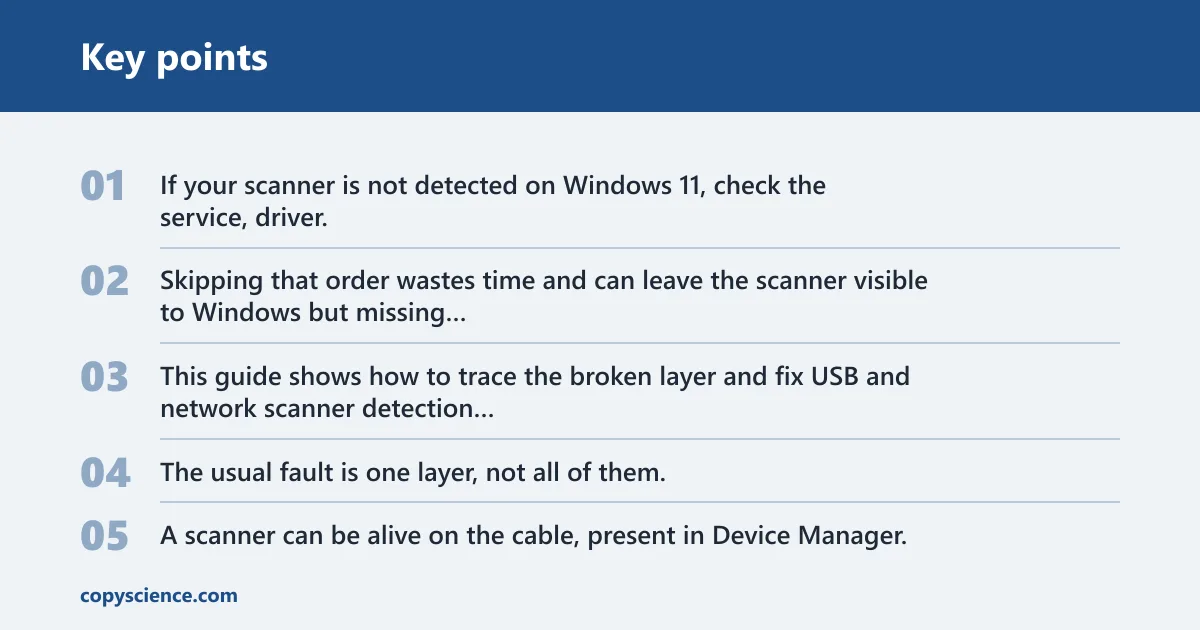
If your scanner is not detected on Windows 11, check the service, driver, USB or network path, and app registration in that order before reinstalling anything. Skipping that order wastes time and can leave the scanner visible to Windows but missing from scan apps. This guide shows how to trace the broken layer and fix USB and network scanner detection step by step.
The usual fault is one layer, not all of them. A scanner can be alive on the cable, present in Device Manager, and still absent from Windows Scan because WIA is stopped, the vendor package does not match the exact model, or the scanning app never registered the device after an update.
Quick answer
Start by separating the symptom from the layer. If the scanner panel button works but the PC does not, that points away from power and toward software registration or a Windows service. If Windows sees the scanner but apps do not, the problem is usually driver loading or app registration.
What you’ll need first
- Your exact scanner model name and Windows 11 edition or build.
- The manufacturer driver or software download page for that exact model.
- A known-good USB cable, or the scanner’s IP address for a network setup.
- A rear motherboard USB port, not a hub or dock, for USB testing.
- The Windows Scan app from Microsoft Store for a basic detection check.
Scanner diagnosis table
| Symptom | Most likely layer | First verification step | Next action |
|---|---|---|---|
| Printer works but scanner does not | Driver or software registration | Open Windows Scan and check whether the device appears | Install the exact manufacturer package and vendor scanning app |
| Scanner appears in Device Manager but not in apps | Driver or service | Check Imaging devices for warning icons | Restart WIA and install the full vendor driver package |
| Scanner works on the device panel but not on the PC | Software registration | Open the manufacturer scan utility and check for the scanner name | Reinstall the vendor software suite |
| Scanner disappears after a Windows update | Driver or software registration | Open Device Manager and look for duplicate imaging entries | Remove the old entry, reinstall the exact model package, then retest |
| Scanner is found on USB but not on Wi‑Fi | Network or software registration | Check the scanner IP address from its menu or control panel | Confirm the PC and scanner are on the same network, then add the device again in vendor software |
| Windows Scan opens but finds no scanner | Service or driver | Check the status of Windows Image Acquisition in services.msc |
Set WIA to Automatic and restart it |
| Duplicate imaging entries show up in Device Manager | Driver | Review Device Manager under Imaging devices | Uninstall the duplicate entry, then reinstall the manufacturer package |
| Vendor software sees the scanner, Windows Scan does not | Software registration | Open Windows Scan and compare the device list with the vendor app | Repair or reinstall the vendor app and its listener service |
Check Windows services
Windows Image Acquisition should be running, set to Automatic, and able to start through its RPC dependency. Shell Hardware Detection should also be running and set to Automatic. If either service is stopped, scanner apps may open but never list the device.
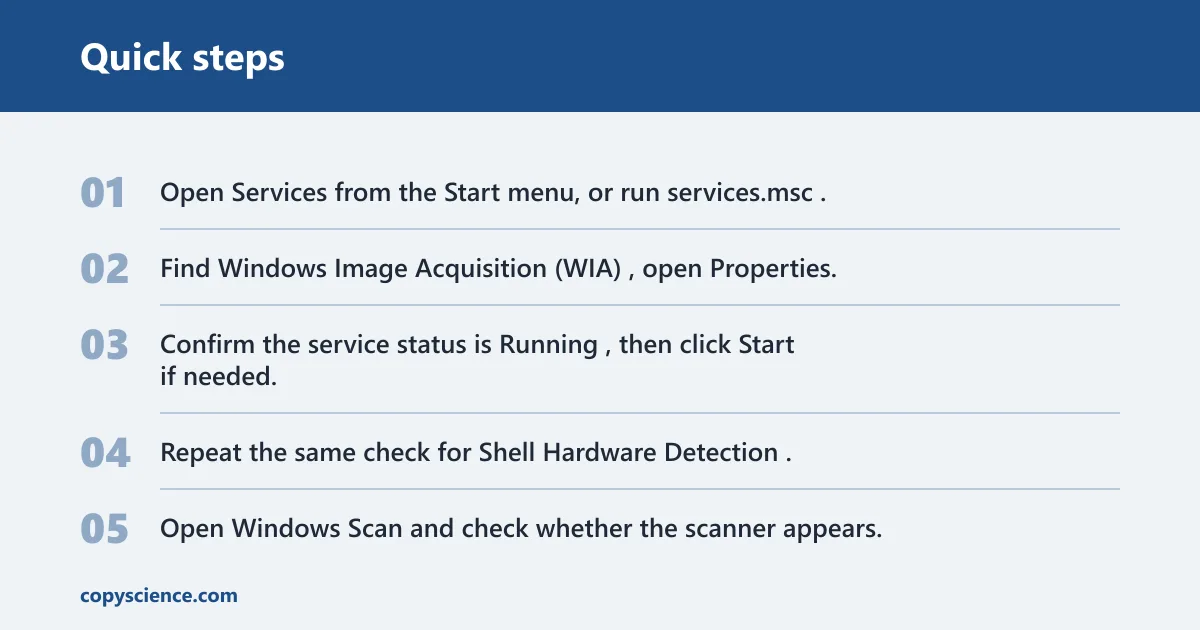
- Open Services from the Start menu, or run
services.msc. - Find Windows Image Acquisition (WIA), open Properties, and set Startup type to Automatic.
- Confirm the service status is Running, then click Start if needed.
- Repeat the same check for Shell Hardware Detection.
- Open Windows Scan and check whether the scanner appears.
Say your multifunction printer is connected by USB and prints correctly, but Windows Scan shows no device. That pattern often points to WIA or Shell Hardware Detection, not to a dead scanner. Fix the service layer before replacing cables or reinstalling every app.
If that still fails, restart the service chain by closing scan apps, stopping and starting WIA again in services.msc, then rebooting Windows 11. A service restart can clear a stuck registration path after an update.
Why does Device Manager show the scanner but apps do not?
Device Manager can show a scanner under Imaging devices even when scan apps cannot use it. Warning icons often mean the driver did not load correctly. After a Windows update, duplicate imaging entries can appear, and that can break app detection while the device still looks present.
- Open Device Manager and expand Imaging devices.
- Look for a yellow warning icon, unknown device, or duplicate scanner entry.
- Right-click the scanner, choose Uninstall device, and remove the duplicate if Windows shows one.
- Install the exact manufacturer driver package for the model and Windows 11 version.
- Open Windows Scan and run a simple scan test.
Do not rely on a generic print driver if the scanner is part of a multifunction device. Canon scanners, in particular, may need the full manufacturer package and software, not only the basic print component. The package should match the exact model and the Windows version.
Do I need the manufacturer driver or is the basic Windows driver enough?
The basic Windows driver can be enough for a quick visibility check, but it is often not enough for full scanner functions. A scanner may need the full manufacturer package for scan profiles, feeder support, button actions, or scan-to-PC features. If the scanner appears in Windows but not in the vendor app, the built-in driver is usually too limited.
- Download the official package for the exact model from the manufacturer site.
- Remove older scanner software if the package installer recommends it.
- Install the full driver and scanning software, not only the print component.
- Restart Windows 11 and open the vendor scan utility.
- Run Windows Scan only after the vendor software sees the device.
Suppose a printer-scanner combo prints from every app, but the scan button on the printer sends nothing to the PC. That often means the print path is fine while the scan software registration is missing. Reinstall the full vendor suite before replacing hardware.
Is the problem USB, Wi‑Fi, or software?
Separate the connection path from the app path. USB problems show up as unstable detection, missing devices after plugging in, or a scanner that works only on one port. Network problems show up when the scanner is reachable on one device but not another. Software problems show up when vendor tools see the scanner but Windows Scan does not.
- For USB, connect the scanner directly to a rear motherboard port.
- Remove hubs, docks, and front-panel ports during troubleshooting.
- Replace any worn or damaged cable and retest.
- For Wi‑Fi or Ethernet troubleshooting, confirm the scanner and PC are on the same network.
- Check the scanner IP address, then ping it from the PC with ping x.x.x.x.
- Open the manufacturer scanning app and re-add the scanner if registration failed.
A common first-timer mistake is to switch between USB and Wi‑Fi without proving the layer that failed. That can hide the real issue. If a scanner works by USB but not by network, the cable is not the problem; registration or IP reachability is.
Common mistakes
Most repeated failures come from jumping to the wrong fix. Reinstalling the wrong package, using a hub, or skipping the vendor software for scan-to-PC functions can leave the scanner invisible even after a clean driver install.
- Installing a driver for the wrong model or Windows version.
- Leaving the scanner on a front-panel port, hub, or dock during USB checks.
- Using Windows Scan before the vendor software has registered the device.
- Ignoring device duplicates in Device Manager after a Windows 11 update.
- Skipping network checks such as IP address and ping for wireless scanners.
Should you reinstall the scanner software after a Windows 11 update? Yes, if the problem began right after the update and Device Manager now shows duplicates or the vendor app no longer lists the device. If the problem began after a Windows 11 update, reinstall the matching model package first, then retest WIA and Windows Scan.
Frequently asked questions
What Windows service should be running for scanner detection?
Windows Image Acquisition should be running, with Startup type set to Automatic. Shell Hardware Detection should also be running and set to Automatic. If scanner apps still fail, open services.msc, restart both services, and then test in Windows Scan.
How do I check whether the problem is USB, Wi‑Fi, or software?
Use a rear USB port and a known-good cable first. If that works, the USB path was the issue. If the scanner is wireless, confirm the PC and scanner are on the same network and ping the scanner IP. If vendor software sees it but Windows Scan does not, the problem is software registration.
Should I reinstall the scanner software after a Windows 11 update?
Reinstall it when the scanner disappeared after the update, Device Manager shows duplicate imaging entries, or the vendor app no longer lists the device. Install the exact manufacturer package again, then verify WIA and retest in Windows Scan. That sequence fixes many post-update registration failures.
How do I know if Device Manager sees the scanner?
Open Device Manager and expand Imaging devices. A listed scanner name means Windows sees the hardware path. A warning icon points to a driver problem. Duplicate entries often appear after updates, and that usually means the older entry should be removed before reinstalling the correct package.
Why does my printer work but my scanner does not on Windows 11?
Printing and scanning use different paths. The printer can work while WIA, the scan service, or the vendor scan component is broken. That is common on multifunction devices. Check WIA first, then install the full manufacturer driver and scanning software, then test with Windows Scan.
How do I fix a scanner that is connected but not detected?
Open services.msc and make sure WIA and Shell Hardware Detection are running. Then check Device Manager, install the exact manufacturer package, and test in Windows Scan. If the scanner is USB, use a rear motherboard port. If it is networked, confirm the IP address and network connection.