How to Scan to PDF on Windows 11 with Built-in Tools

Use the Windows Scan app to save to PDF on Windows 11 and Windows 10. If the PDF choice is missing, you can still scan to an image and then use Microsoft Print to PDF if that print option is available. If you pick the wrong output type, you may end up with image files instead of a PDF that is easier to share and archive.
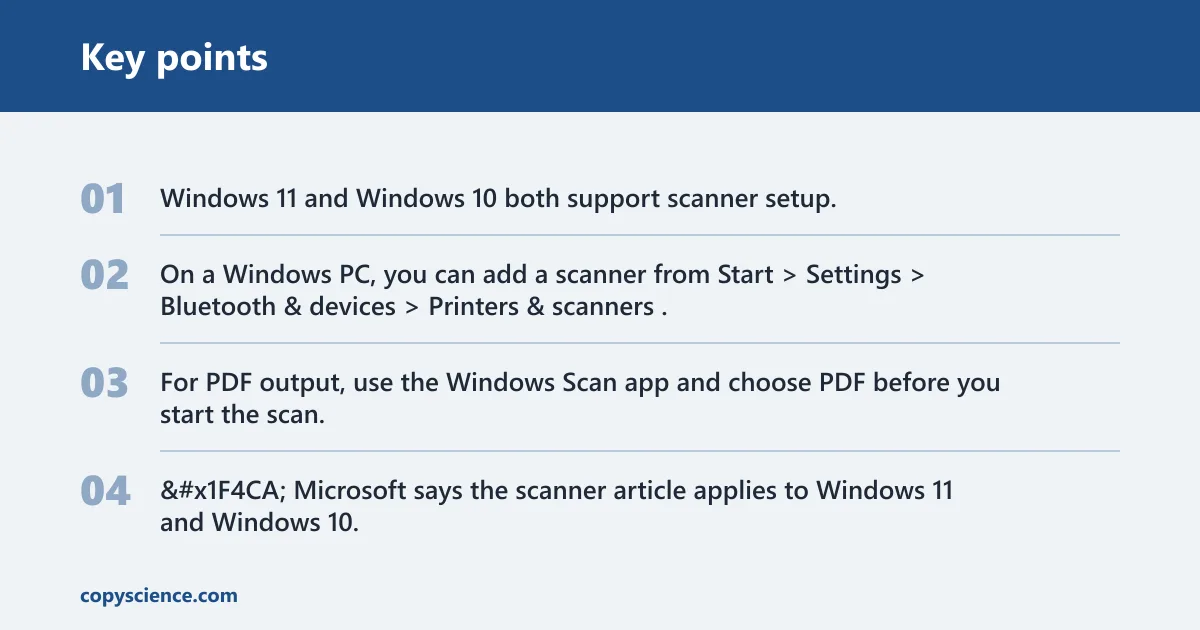
Windows 11 and Windows 10 both support scanner setup. On a Windows PC, you can add a scanner from Start > Settings > Bluetooth & devices > Printers & scanners. For PDF output, use the Windows Scan app and choose PDF before you start the scan. (Microsoft Support)
Windows Fax and Scan can start a scan, but it does not natively save scans as PDF, so the file-type choice matters before you begin.
📊 Microsoft says the scanner article applies to Windows 11 and Windows 10. Source: Microsoft.
What you’ll need
- A scanner, or a multifunction printer with a scanner bed
- A USB cable, if you are setting up a local scanner
- A network connection for wireless or network scanners
- Windows Scan installed if it is not already on the PC
- Scanner software or a driver package from the manufacturer if Windows does not identify the device correctly
How do you add a USB scanner?
Plug the scanner into an available USB port, turn it on, then let Windows look for it.
- Open scanner settings. Go to Start > Settings > Bluetooth & devices > Printers & scanners. This is the main place to add or find a scanner in Windows 11.
- Select Add device. Wait while Windows scans for locally connected scanners. If the scanner appears, select it and finish the prompts.
- Add it manually. If the device is not listed, wait a moment and choose Add device again to refresh the search.
How do you add a network scanner?
Wireless and network scanners can show up on the same Printers & scanners page, but Windows has to search the network first.
- Confirm the scanner is on. Turn on the scanner or all-in-one printer before you start discovery.
- Run device discovery. Open Settings > Bluetooth & devices > Printers & scanners, then select Add device. Windows searches the network for wireless devices.
- Use manual add. If Windows does not find it, select Add device again and wait for the device to appear in the list.
If the scanner is not found right away, check the device’s power, connection, and network setup, then try the search again from the same page.
How do you scan to PDF?
Open the Windows Scan app, pick the scanner, and choose PDF as the output format before you start the scan. That format choice is the key difference between a shareable PDF and a page image saved in JPG, PNG, or another picture format.
- Open the scan app. Launch Windows Scan. If it is not installed, install it from the Microsoft Store.
- Select the scanner. Choose the detected device, then pick Document for paper pages or Picture for photos when that option is shown.
- Choose PDF output. Set the file type to PDF before scanning.
- Save the file. Choose a destination folder and confirm the save.
How do you scan a multi-page document into one PDF?

A single PDF from multiple pages depends on the app and the device. Some scanner apps can keep scanning pages into one file, while others save each page separately and leave the merge step to another tool.
- Check page support first. Open the scan app and look for a multi-page or add-page option before you scan. If it is missing, the app may not support one-file PDFs for your device.
- Scan in order. Feed or place pages in the same sequence you want in the final PDF. Keep page orientation consistent so you do not have to rotate pages later.
- Merge if needed. If the app only saves images, scan each page as an image and use a PDF tool that can combine pages into one file.
Picture a 6-page rental form scanned on a flatbed. If the app saves each page as a separate file, the cleanest fallback is to combine those pages after scanning rather than rescan everything.
What if the PDF option is missing?
If the scan app opens but PDF is not available, scan to an image format first, then print that image to PDF if the print option is available.
- Switch to image output. In the scan app, choose JPG or PNG if PDF is missing. Save the scan as an image so you at least capture the page.
- Print to PDF. Open the saved image and use Microsoft Print to PDF if that print option is available on the PC.
- Check the scanner setup again. Return to Start > Settings > Bluetooth & devices > Printers & scanners, then confirm that the scanner is listed and selected correctly.
If PDF is not available, the scan app or device setup may be limiting the file types you can choose.
Windows 11 scan-to-PDF checklist
| Symptom | Likely cause | Where to check in Settings | Fastest fix |
|---|---|---|---|
| USB scanner is not listed | It is not turned on, or Windows has not found it yet | Start > Settings > Bluetooth & devices > Printers & scanners | Plug into a USB port, turn the scanner on, then select Add device |
| Network scanner is not found | Windows has not discovered it yet, or the network setup is incomplete | Start > Settings > Bluetooth & devices > Printers & scanners | Select Add device, then try again after checking the scanner’s network connection |
| Multifunction printer appears only as a printer | The scanner component is not showing up yet | Start > Settings > Bluetooth & devices > Printers & scanners | Check the device list again and make sure the scanner is available before you open the scan app |
Common mistakes
Do not assume every Windows 11 PC already has the scan app installed. The app may need to be added from the Microsoft Store before PDF output appears.
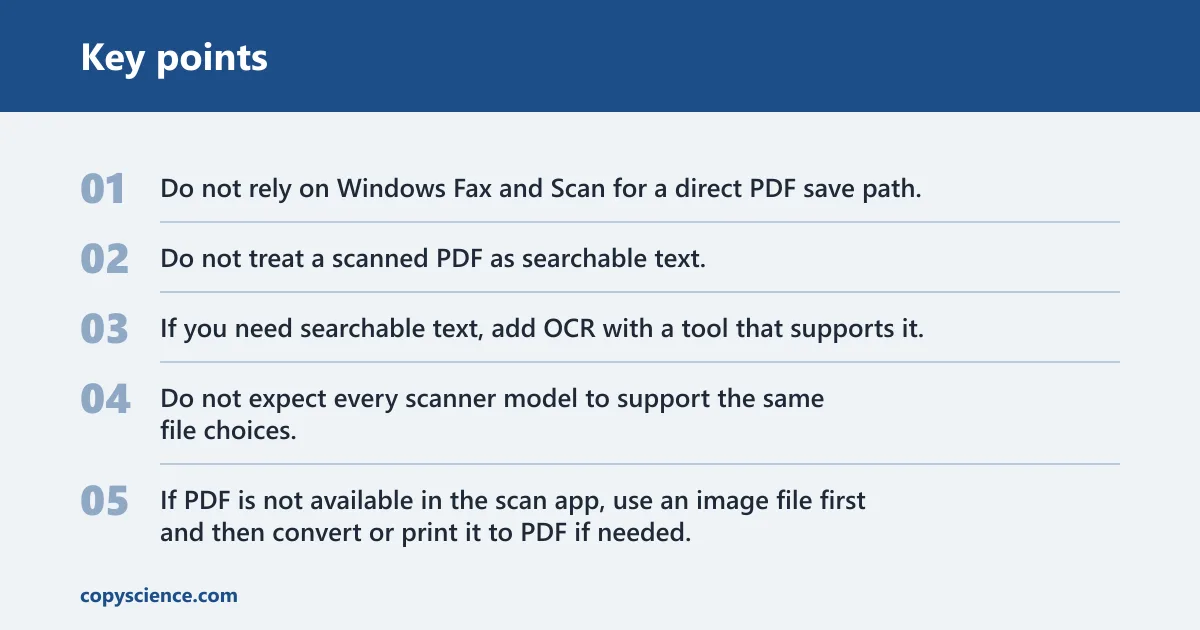
Do not rely on Windows Fax and Scan for a direct PDF save path. It can start scans, but it does not natively save them as PDF files.
Do not treat a scanned PDF as searchable text. If you need searchable text, add OCR with a tool that supports it.
Do not expect every scanner model to support the same file choices. If PDF is not available in the scan app, use an image file first and then convert or print it to PDF if needed.
Keep the scanner driver current and verify the app’s output type before you scan a long document. That saves you from rescanning pages later.
Frequently asked questions
How do I scan a document to PDF in Windows 11?
Open Windows Scan, select the scanner, choose PDF as the output format, then start the scan. If PDF is missing, scan to an image first and use Microsoft Print to PDF if that print option is available on your PC.
Where is the Windows 11 scan app?
Use the Microsoft Store if the app is not already installed. On the device side, scanner setup starts at Start > Settings > Bluetooth & devices > Printers & scanners, where Windows can find the hardware before you open the scan app.
Can I scan to PDF without installing extra software?
Sometimes. If Windows Scan is already installed and the scanner driver exposes PDF output, you can stay within built-in tools. If not, you will need to install the scan app or use the image-to-PDF workaround.
Why doesn’t my scanner show up in Windows 11?
Check Start > Settings > Bluetooth & devices > Printers & scanners, then select Add device. Turn the scanner on first, then try the search again if Windows does not find it right away.
What built-in Windows tools can save a scan as PDF?
Windows Scan is the built-in path to check first. If PDF is not exposed there, scan to an image and use Microsoft Print to PDF as the fallback, provided the app and file type let you print the file.