Can You Scan Double Sided Documents on a Home Scanner?

Yes, if your scanner has an ADF with duplex support, it can scan both sides automatically. If it lacks that feature, you need to scan one side at a time or use manual duplex methods. Wrong settings can flip pages, miss backs, or create unusable PDFs. This guide explains how to tell which type you have and the safest ways to scan double-sided papers at home.
How duplex scanning works
You can, but only some home scanners do it in one pass. The key difference is duplex scanning, which captures both sides of each sheet, usually through an automatic document feeder. Flatbed scanners typically scan one side at a time, so manual page flipping is usually needed for a true two-sided document.
What double sided means in scanning terms
In scanning, double sided or two sided means the front and back of each sheet both need to end up in the final file in the correct order. That matters most for reports, forms, and records where page 2 is the back of page 1, not a separate document.
For home use, PDF is often the safest output. It keeps the page sequence in one file and is easy to store, email, or archive.
What makes a scanner duplex capable
A duplex scanner is commonly used to scan both sides in one pass. In home setups, that usually means an ADF that pulls each sheet through a path with imaging on both sides. Some home all-in-one printer-scanner models include this feature, but support can vary by model.
Duplex scanning software may also be part of the setup. It can merge front and back images, place them in the right order, and save the result as a single PDF.
When a home scanner can only scan one side
If the scanner has only a flatbed, or an ADF without duplex support, it will usually scan one side at a time. That does not make it useless for two-sided documents. It just means you need a single-sided scanning workflow with manual flipping and careful page order.
A common first-timer mistake is assuming software can replace missing hardware. Software can combine scans, but it cannot make a one-sided feeder read the back of a page in the same pass.
How home scanners handle both sides
Home scanners usually fall into four patterns: duplex ADF, ADF without duplex, flatbed-only, and all-in-one printer-scanner combos that may or may not include duplex support. The hardware decides whether the scanner can capture both sides automatically, while the software decides how the pages are merged and named.
- Duplex ADF: Best for stacks of standard paper. Feed the pages, choose duplex, and the scanner captures front and back in one run.
- ADF without duplex: Useful for batch scanning, but it still needs a second pass or a manual flip between sides.
- Flatbed scanner: Best for books, fragile pages, receipts, and mixed media. It usually scans one side at a time.
- Home all-in-one printer: May include a scanner with duplex ADF support. The model spec, not the product type, decides whether it can scan both sides automatically.
What if your scanner only scans one side?
If your scanner only scans one side, you can still digitize double-sided pages. The safest fallback is to scan the front side first, then flip the stack and scan the back side in the same page order. This works best with clean, even stacks and careful file naming.
Single-sided scanning workflow
Scan all front sides first, then scan all back sides. Keep the stack in the same order, and mark one corner if needed so you know which edge stays at the top after the flip. That helps preserve page ordering when you combine the files later.
- Scan the front sides. Place the stack in order and scan every page once. Save the file immediately as fronts.pdf or a similar name so you do not mix it with the back-side set.
- Flip the stack carefully. Turn the pages in the way your feeder or flatbed requires, and keep the same top edge orientation. The goal is to match each back page to its front page later.
- Scan the back sides. Use the same scan settings as the first pass. Keep the resolution, color mode, and file type unchanged so the two files combine cleanly.
- Merge in page order. Use scanning software or a PDF tool that can insert the back pages after the fronts, one by one. Check the final file before you save it.
Using a flatbed for duplex pages
A flatbed scanner can handle double-sided documents, but it does so slowly. Scan the front, turn the page over, scan the back, and repeat for each sheet. That method is slow for long stacks, but it is often the safest choice for a book page, a torn receipt, or a sheet with delicate writing.
Picture a 12-page lease packet where the pages are stapled loose. A flatbed can scan it, but each page needs two scans. If the pages are mixed up during flipping, the final PDF may pair page 3 front with page 7 back, which is hard to repair later.
Handling fragile pages and mixed stacks
Fragile pages and mixed stacks are poor candidates for an ADF. Thin paper, curled edges, carbon copies, sticky notes, and pages with different sizes can jam or misfeed. For those jobs, a flatbed is slower but safer, especially when some pages are one-sided and others are two-sided.
Suppose a home user has a packet with a photo print, two double-sided forms, and a receipt taped to a sheet. That stack should not go straight into an ADF. Scan each item separately and combine the files afterward if the final archive needs one PDF.
How do you keep page order right?
Keep page order by matching the front and back scans in the same sequence and checking how the software inserts the pages. Misordered pages are one of the most common failures in home duplex workflows. A good scan app or PDF tool should let you preview the sequence before saving.
Front and back sequence
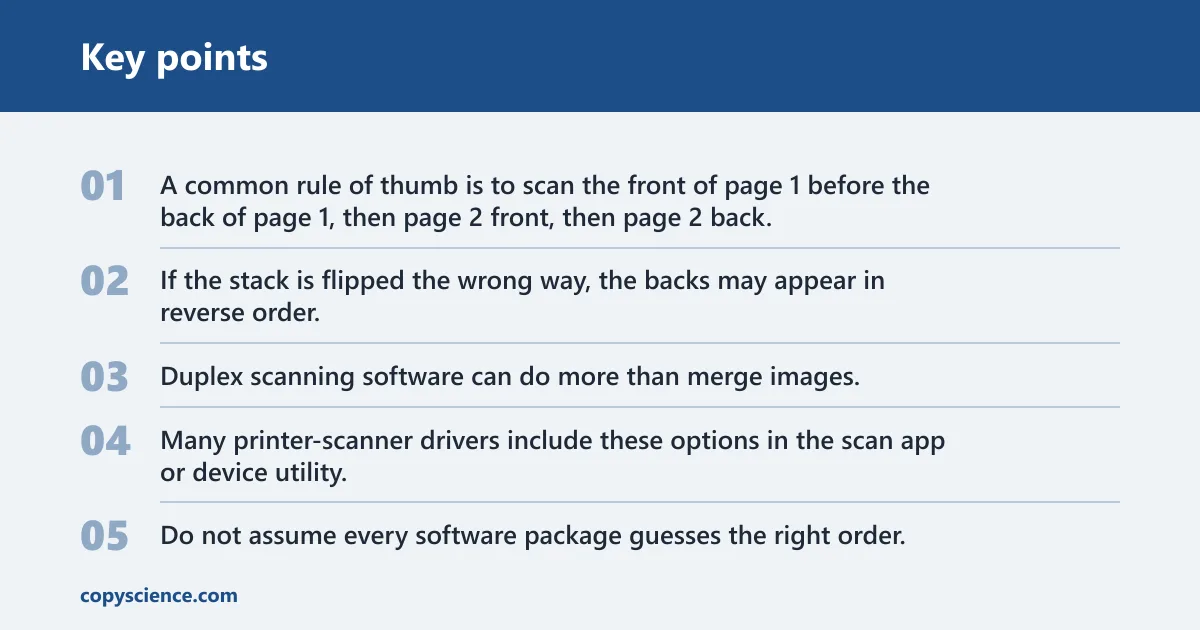
A common rule of thumb is to scan the front of page 1 before the back of page 1, then page 2 front, then page 2 back. If the stack is flipped the wrong way, the backs may appear in reverse order. That is why the first test should be a short stack of two or three pages.
Merging scans with duplex software
Duplex scanning software can do more than merge images. It can reorder pages, rotate misfed sheets, remove blank backs on one-sided originals, and export a finished PDF. Many printer-scanner drivers include these options in the scan app or device utility.
Do not assume every software package guesses the right order. Some tools simply append files in the order they were scanned. If that happens, you may need to sort the pages manually before saving the PDF.
Using PDF output for the final file
PDF is the most practical final format for double-sided home scanning. It keeps page order intact, opens on almost any device, and is easier to send than separate image files. It is also better than a loose set of JPEGs when you need the front and back of each page together.
A flatbed scanner with no duplex support can still produce a clean PDF if the pages are scanned and merged in order. The file format does not solve bad order by itself, but it gives you one place to check and fix the sequence.
Double sided scanning workflow table
The right workflow depends on the hardware, not the document alone. Use this table to match a common home setup to the safest method, the most likely failure point, and the output that usually causes the fewest problems.
| Home setup | Expected steps | Likely failure points | Best output format |
|---|---|---|---|
| Flatbed-only scanner | Scan each front side, flip each page, scan each back side, then merge the files in order. | Slow workflow, flipped pages, mismatched fronts and backs, missed pages. | PDF after manual merge. |
| ADF without duplex | Run one pass for fronts, reload or flip the stack, then run the backs with the same settings. | Reversed sequence, jams from mixed paper sizes, blank backs saved in the wrong spot. | PDF with careful page ordering. |
| Duplex ADF | Load the stack once, choose duplex scanning, review the page order, and save. | Misfeeds, double feeds, blank pages from poor paper handling, wrong duplex setting. | PDF from the duplex scan job. |
| Printer-scanner combo | Check whether the scanner section includes duplex ADF support, then use the scan app to start a duplex job. | Model confusion, driver settings that default to one-sided scans, software that does not reorder pages. | PDF through the vendor scan app. |
| Fragile or mixed documents | Use the flatbed, scan one side at a time, and combine pages only after checking each image. | Torn edges, curled sheets, paper that should not enter an ADF, page loss during manual flipping. | PDF after selective manual assembly. |
How do you know if your scanner supports duplex scanning?
Check the model name, the specs, and the scan app. Look for ADF and duplex in the product description or manual. If the scanner has an ADF but no duplex mention, it may be a one-sided feeder. The driver or scan software usually exposes the final confirmation.
Look for ADF and duplex terms in the model specs
Manufacturer specs often say whether the device has an automatic document feeder and whether that feeder supports duplex scanning. If the listing says ADF but never mentions duplex, do not assume it scans both sides automatically. A home all-in-one printer can go either way.
Check the scanner driver or scan app
Open the scan software and look for a duplex, two-sided, or double-sided setting. If the option appears, the hardware likely supports it. If the option is missing, the device may only scan one side, or the feature may be disabled by the current driver.
Use the manual for page-feeder limits and duplex settings
The manual should show the feeder type, page capacity, and whether both sides are supported. It may also describe which settings control page order, blank-page removal, and PDF export. That is the most direct way to confirm what the model can do before a long scan job.
Say your scanner lists an ADF, but every scan comes out front-side only. The manual can reveal whether duplex is unsupported, turned off in the app, or limited to a different paper size. That saves time before you rescan a 40-page packet.
Frequently asked questions
Can you scan double sided documents on a home scanner?
Yes, if the scanner has a duplex-capable ADF. If it does not, you can still scan double-sided documents by scanning one side at a time and merging the pages later. Flatbeds work too, but they require manual flipping for every sheet.
Do I need a duplex scanner to scan both sides?
You need a duplex scanner only if you want both sides captured in one pass. If speed is less important, a flatbed or one-sided ADF can still handle two-sided documents with a manual scan-and-flip workflow. The tradeoff is time and a higher risk of page-order errors.
How do I scan a two sided document at home?
Use duplex scanning if your ADF supports it. If not, scan all fronts first, flip the stack, scan all backs, then combine the files into one PDF. Keep the stack in the same order throughout the process so the pages line up correctly.
Can a flatbed scanner scan double sided pages?
Yes, but only by scanning one side at a time. A flatbed is usually the better choice for books, fragile sheets, and mixed media because it avoids feeder jams. It is slower than a duplex ADF, but it gives you more control over each page.
What if my scanner only scans one side?
Use a single-sided scanning workflow and plan to merge the pages afterward. Scan the front sides, then the backs, then reorder the pages in software if needed. Save the final file as a PDF so the page sequence stays together in one document.
How do I know if my scanner supports duplex scanning?
Check for an ADF, then look specifically for duplex, two-sided, or double-sided support in the specs or manual. The scan app may also show a duplex setting. If none of those sources mention it, assume the scanner is one-sided until you confirm otherwise.