Printer vs Copier: Which Is Better for Home Document Tasks?

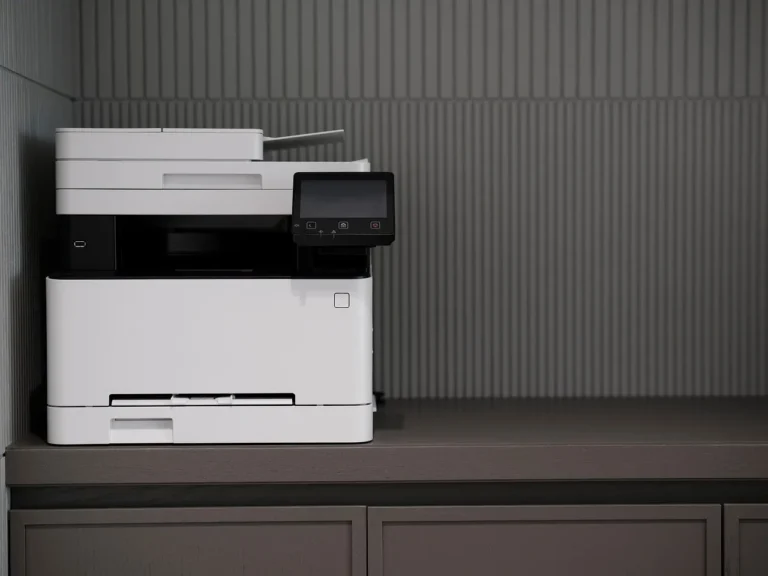
For many homes, an all-in-one printer with scan-to-copy is the better choice than a standalone copier. It prints, copies, and scans in one unit, so you avoid extra bulk and keep one device for school packets, ID forms, and duplicate pages. This guide compares printer, copier, and all-in-one options for forms, handouts, scans, and duplicate pages.
Printer vs copier: the home trade-off
| Decision factor | Printer | copier | Winner |
|---|---|---|---|
| Home document flexibility | Prints; many all-in-one models also copy and scan | Copies first, with a workflow built around duplication | Printer |
| Space and footprint | Often smaller, especially basic inkjet or laser models | Larger and heavier, since it is built for volume | Printer |
| Multi-page copy speed | Good when it has an ADF and faster scan path | Usually better for repeated duplicate jobs | copier |
| Text and photo balance | Inkjet favors color and photos; laser favors text | Usually tuned for document duplication, not photos | Printer |
| Best fit for home use | School forms, recipes, labels, homework, occasional scans | High-volume duplicate jobs and frequent batch copying | Printer |
Home flexibility
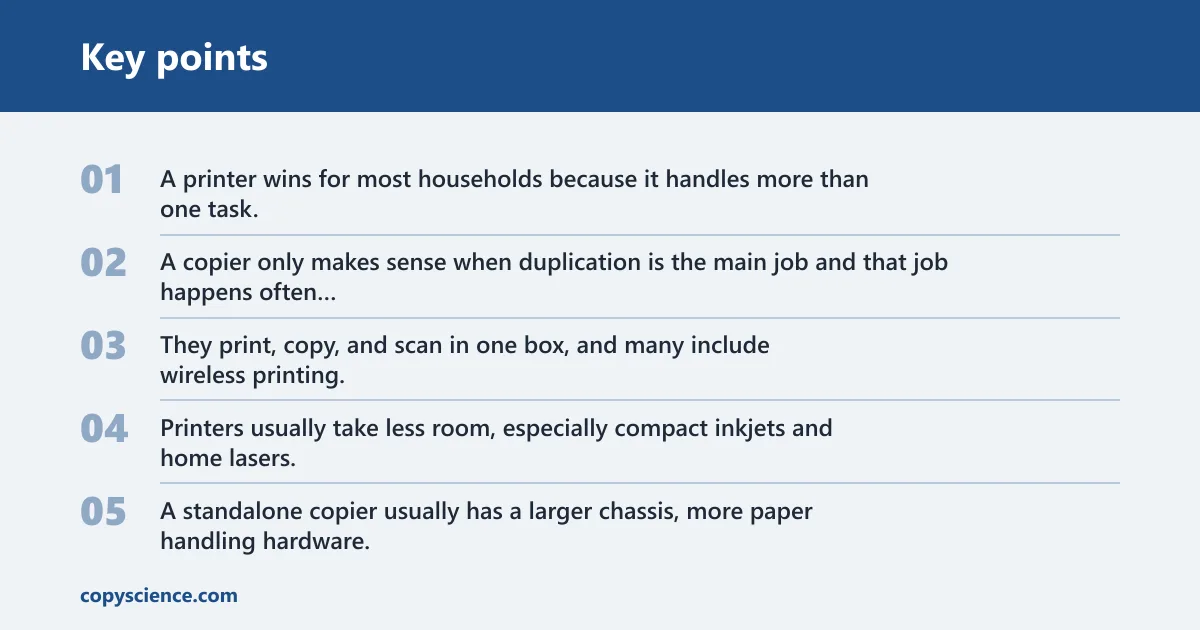
A printer wins for most households because it handles more than one task. A copier only makes sense when duplication is the main job and that job happens often enough to justify a larger, more business-first device.
All-in-one printers sit in the middle. They print, copy, and scan in one box, and many include wireless printing, mobile printing, duplex printing, and an ADF for stacked pages.
Space and handling
Printers usually take less room, especially compact inkjets and home lasers. A standalone copier usually has a larger chassis, more paper handling hardware, and a layout built for frequent use instead of occasional home paperwork.
For example, a six-page packet one day and a one-page permission slip another day are the kind of jobs a 20-sheet or larger feeder is usually enough for. An all-in-one printer with a 20-sheet or larger feeder is usually enough; a copier adds bulk without improving the actual home workflow much.
Copy speed and job size
Copiers pull ahead when you keep duplicating stacks of pages. The advantage comes from quicker first-page handling, smoother batch feeding, and a workflow built around copying as the main task, not a side feature.
Home document matrix
This table shows which device fits common home tasks. The best pick is the one that matches the job size, paper handling need, and how often you repeat the task.
| Task type | Best device choice | Why |
|---|---|---|
| School forms and homework packets | Printer | An all-in-one printer handles print, copy, and scan in one place, which is enough for weekly school paperwork. |
| ID copies and lease forms | Printer | Copy from the glass platen, keep sensitive pages at home, and avoid buying a larger machine for a few sheets. |
| Occasional scanning | Printer | Scan support matters more than copier branding when you only need to save a PDF or email a document now and then. |
| Multi-page handouts | Printer | An ADF and duplex printing matter more than copier branding unless the handouts become a frequent batch job. |
| Color photos | Printer | Inkjet models are usually the better fit for color output and photo quality. |
| High-volume duplicates | copier | A copier is built for repeated duplication, faster stack handling, and a workflow centered on copy jobs. |
Suppose you need three copies of a signed form and one scan to email. A home all-in-one printer with copy support is the simpler buy. A copier makes more sense only when the duplicated set is larger, more frequent, and more time-sensitive.
What features matter most for home use?
The most useful home features are print, copy, and scan support, plus paper handling that keeps small tasks simple. Wireless printing, duplex printing, an ADF, and a sensible paper tray matter more than brand labels for most households.
All-in-one print, copy, and scan support
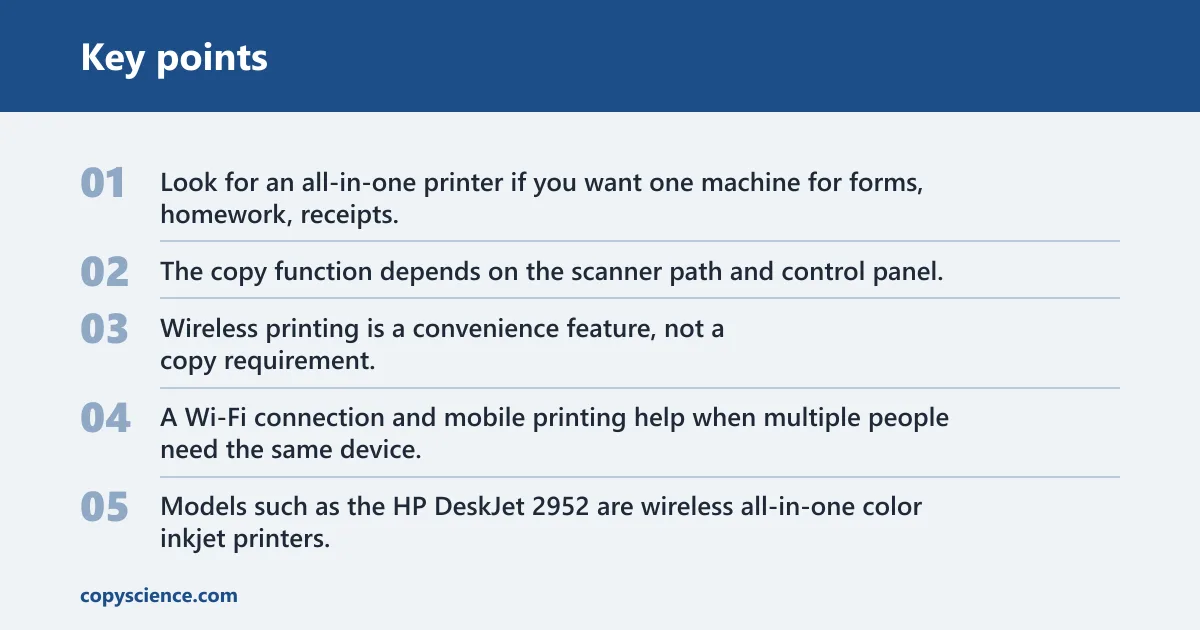
Look for an all-in-one printer if you want one machine for forms, homework, receipts, and basic document storage. The copy function depends on the scanner path and control panel, so print ability alone is not enough.
Wireless printing and mobile setup
Wireless printing is a convenience feature, not a copy requirement. A Wi‑Fi connection and mobile printing help when multiple people need the same device, or when you want to send a job from a phone or tablet without a cable.
Models such as the HP DeskJet 2952 are wireless all-in-one color inkjet printers, and the Canon PIXMA TS3722 and Canon PIXMA TR4722 are positioned for home office use. If you want a compact monochrome all-in-one laser printer with copy, scan and fax, the Brother Wireless MFC-L2760DW adds duplex and mobile printing.
Duplex printing and paper tray capacity
Automatic two-sided output saves paper and reduces manual flipping. A larger paper tray also matters at home because it cuts refill frequency, which helps when you print school packets, labels, or multi-page forms in short bursts.
ADF and copy function speed
An automatic document feeder, or ADF, speeds up stacked pages for scan and copy jobs. If you regularly handle multiple sheets, an ADF matters more than glossy marketing terms because it reduces hand-feeding and keeps the workflow moving.
For a home office that prints text often, an all-in-one laser printer can be a smart middle ground. The HP LaserJet MFP M234sdw supports print, scan, and copy, while CNET identifies the HP OfficeJet Pro 9125e as its best overall printer and most versatile pick.
Inkjet vs laser for document tasks
Inkjet and laser solve different home problems. Inkjet is usually better for color output and photos, while laser is usually better for fast text printing and lower-cost document runs when volume rises.
When inkjet is the better fit
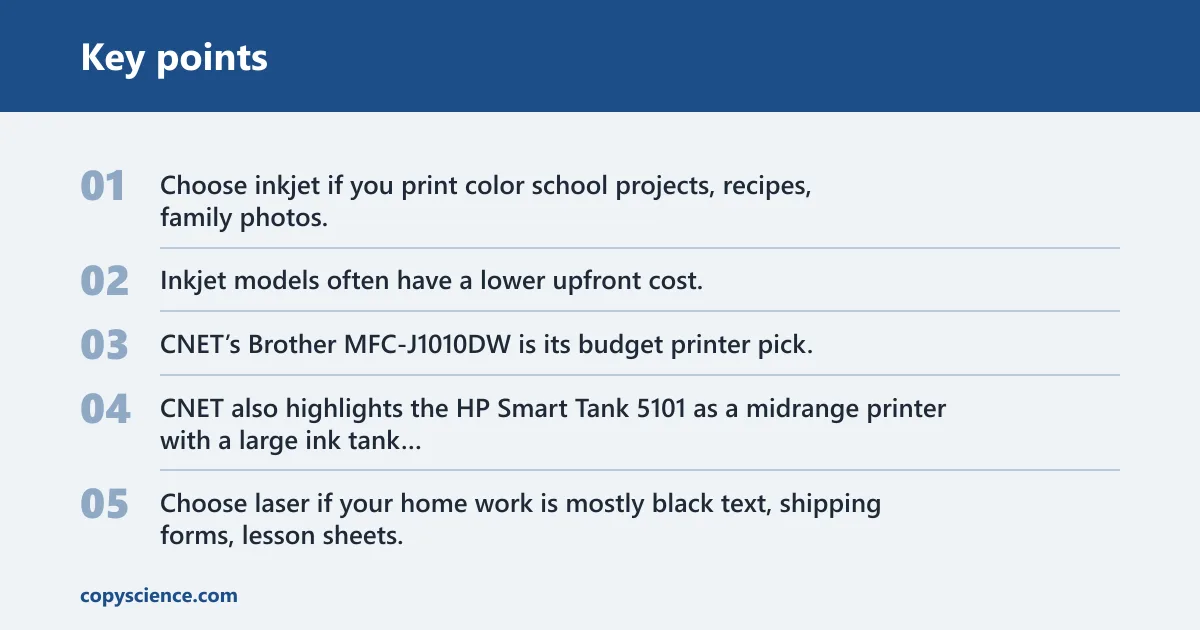
Choose inkjet if you print color school projects, recipes, family photos, or the occasional color form. Inkjet models often have a lower upfront cost, and tank-based designs can cut refill frequency compared with small cartridges.
CNET’s Brother MFC-J1010DW is its budget printer pick, which points to the low-entry appeal of smaller inkjet all-in-one models. CNET also highlights the HP Smart Tank 5101 as a midrange printer with a large ink tank advantage.
When laser is the better fit
Choose laser if your home work is mostly black text, shipping forms, lesson sheets, and repeated document pages. Laser printers are usually a stronger fit for small-office suitability because toner-based running costs can be steadier when pages start adding up.
CNET’s Brother HL-L3270CDW is its best pick for small offices, which reflects the way laser models handle text-heavy work. A monochrome laser all-in-one can be especially practical if you want quick pages without paying for photo features you will rarely use.
How running costs change
Ink and toner costs matter most when you print often. Small cartridges can run out faster, while larger cartridges and toner yields spread consumable replacement over more pages, which is why the same device class can feel cheap or expensive depending on volume.
For occasional home tasks, the difference is often smaller than buyers expect. The real cost swing appears when a household starts duplicating or printing the same multi-page packet every week.
Can a home printer copy without a computer?
Yes, many home all-in-one printers can copy without a computer connected, as long as the copy function is built in. You place the page on the glass platen or in the ADF, choose copy on the control panel, and the device duplicates the document on its own.
Copy from the glass platen
The flatbed glass is often the best option for IDs, receipts, folded pages, and anything fragile. It gives you direct placement, which helps when you want the entire page to be captured cleanly and kept local at home for privacy.
Copy from the ADF
The ADF is the better option for stacks of pages. It speeds up multi-page copying and scanning because the machine feeds sheets automatically instead of requiring one sheet at a time.
Why some printers print but will not copy
Some printers can still print even if the scan side has failed, or if the control panel path for copying is broken. A bad scanner lamp, a blocked ADF, a stuck lid switch, or a menu issue can stop copying while printing still works.
A common first-timer mistake is assuming a working print engine means the whole device works. It does not. If printing still works but copying fails, the problem usually sits in the scanner hardware, feeder path, or front-panel controls rather than the print cartridge or toner.
Choose Printer if… / Choose copier if…
For most homes, choose a printer, specifically an all-in-one printer, if you want one machine for printing, copying, and scanning. Choose a copier only when duplication is frequent enough that speed, batch handling, and copy-first design matter more than size or photo quality.
Choose Printer if…
- You need school forms, homework packets, return labels, or recipes.
- You want copy and scan support without buying a larger device.
- You print color pages or photos sometimes.
- You value wireless printing, duplex printing, or a smaller footprint.
Choose copier if…
- You duplicate pages often enough that a copy-first workflow saves time.
- You regularly handle multi-page stacks and want faster feeding.
- You need a business-style device with more paper handling.
- You can justify the larger footprint and more frequent paper use.
When does a copier become worthwhile?
A copier becomes worthwhile when copy volume is high enough that the device’s copy-first design matters more than its size and cost. For a home user, that usually means a steady monthly load rather than a few scattered pages.
A simple monthly-use threshold
A practical rule of thumb is that if you are duplicating roughly 100 pages or more per month, especially in repeated batches, a copier may make more sense. Below that, an all-in-one printer usually covers the job with less clutter.
Volume, warm-up time, and first-page speed
Higher-volume duplicate work benefits from faster warm-up and quicker first-page output. Those details matter less for a few homework sheets, but they matter more when you are copying a packet, a contract, or a stack of forms on a deadline.
Paper handling, footprint, and refill frequency
Copiers often justify themselves through sturdier paper handling and fewer interruptions during a batch. The trade-off is a larger footprint and a more business-first design, which most homes do not need for occasional tasks.
Frequently asked questions
Is a printer or copier better for printing and copying homework and forms at home?
For homework and forms, a printer is usually better, especially an all-in-one printer with copy and scan support. It covers the same jobs a household needs most often, while taking less space and usually costing less than a copier built for frequent duplication.
Can a home printer make copies without a computer connected?
Yes, many all-in-one printers can copy on their own. Use the glass platen for single pages or the ADF for a stack, then start the copy job from the printer’s control panel. The computer is not required if the copy function is built in.
Do I need a copier at home, or is an all-in-one printer enough?
An all-in-one printer is enough for most homes. If your copying is occasional, the printer’s copy and scan features handle school forms, IDs, and simple handouts. A copier only makes sense when you duplicate pages often enough to justify its larger footprint and batch speed.
Which is cheaper to run for occasional home document tasks, printer or copier?
For occasional home tasks, a printer is usually cheaper overall because you are not paying for a copy-first machine you rarely use. Ink or toner costs still matter, but the bigger factor is matching the device to your actual monthly volume instead of buying for peak use.
What type of printer is best if I only need to print and copy a few pages sometimes?
An all-in-one inkjet is the easiest fit if you want low upfront cost and occasional color output. If your pages are mostly text, a compact laser all-in-one is often better. In both cases, look for copy support, wireless printing, and a simple control panel.
Why won’t my printer copy even though it still prints?
If printing works but copying does not, the scan side may be the problem. Check for a stuck lid, an empty or jammed ADF, or a control panel error. The print engine and the copy path are separate parts of the same device, so one can fail alone.