Printer Says Offline but Is Connected: Troubleshooting Steps

If your printer says offline but is connected, fix it by checking the network, clearing the queue, renewing the IP, then reinstalling the driver if needed. Checking the wrong layer wastes time, blocks print jobs, and can lead you to replace hardware that is fine. This guide gives a fast decision tree for network mismatch, queue blockage, IP drift, and driver failure.
Why a printer says offline
Printer offline status means the operating system has lost communication with the printer, even when the device is powered on and joined to a network. That disconnect can come from the wrong Wi-Fi network name, a stuck queue, an IP address change, or a bad driver.
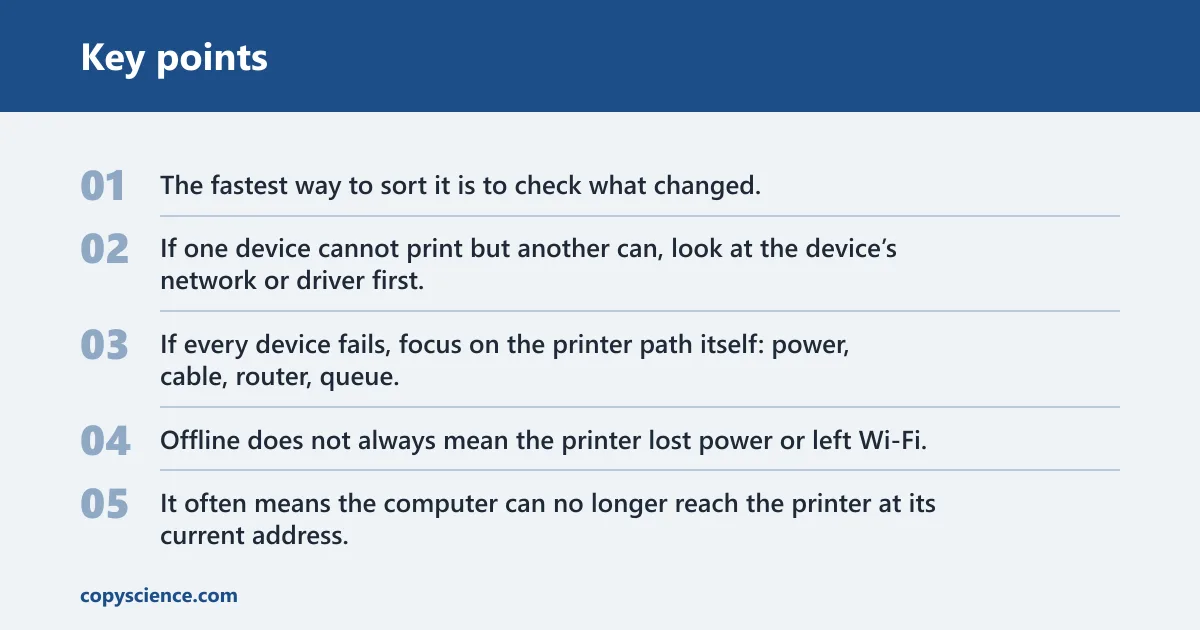
The fastest way to sort it is to check what changed. If one device cannot print but another can, look at the device’s network or driver first. If every device fails, focus on the printer path itself: power, cable, router, queue, and IP assignment.
What the offline status means
Offline does not always mean the printer lost power or left Wi-Fi. It often means the computer can no longer reach the printer at its current address, or the print system is blocked by a pending job. That is why the status can stay offline while the panel still shows connected.
📊 Microsoft’s Windows guidance says to unplug and restart the printer, then wait 30 seconds. Source: Microsoft.
Check the network match first
Start here because it is the quickest pass. Microsoft says the printer and device should be on the same Wi-Fi network. If they are not, the printer can look connected while still being unreachable from that device.
Confirm the exact SSID
Check the Wi-Fi network name exactly on the printer and on the computer, phone, or tablet. A similar name is not enough. If your router has separate SSIDs for 2.4 GHz and 5 GHz, a printer on one band may not answer from a device on the other if the network path is split or isolated.
HP notes that wireless setup commonly uses a 2.4 GHz network frequency. That matters when a printer joins one band and a laptop joins another, especially on routers that separate bands or apply guest-network isolation.
Watch for one-device-only failures
If the printer works from one laptop but not another, the printer is probably not “offline everywhere.” That pattern points to a device-side issue: the wrong SSID, a stale driver, a wrong default printer, or an IP entry that no longer matches the printer.
Say your desktop prints fine, but a MacBook on the guest network says offline. That is a network mismatch on the Mac side, not a broken printer. Move the MacBook to the same SSID as the printer before you spend time on driver work.
What should you check first?
Check power, cable seating, and the router first. For wireless printers, confirm the printer is awake and connected to the same SSID as the device. For USB or wired printers, reseat the cable and confirm the port is firm. Then use the router restart if every device lost access.
Power and cable checks for wired printers
Microsoft’s printer connection guide says to check cables for wired printers. A loose USB cable can mimic an offline printer, and a bad hub can do the same. If the printer is wired, connect it directly to the computer or another known-good port before deeper troubleshooting.
Router restart and printer reconnect
Microsoft’s guidance says to unplug and restart the printer, then wait 30 seconds. A router restart can also restore the path between the printer and the device. After the router boots, give the printer time to reconnect before you try another print job.
Set the correct printer as default
Microsoft says to set the printer as the default printer. If Windows keeps sending jobs to a different device, the intended printer may appear offline even when it is fine. Turn off “Let Windows manage my default printer” if Windows keeps changing the default on its own.
Printer offline troubleshooting matrix
This matrix separates the most common causes in about three minutes. Match the symptom you see, then use the fastest verification step before you move to the next layer.
| Symptom | Likely cause | Fastest verification step | Next fix |
|---|---|---|---|
| Windows shows “offline,” but the printer is on and other devices may print | Wrong SSID, default printer mismatch, queue blockage, or driver failure | Check the exact Wi‑Fi network name and open the print queue | Set the printer as default, cancel pending jobs, then restart the Print Spooler |
| Mac says the printer is offline after a router restart | Stale printer entry or IP drift | Print from another device on the same network | Remove and re-add the printer, or add it by IP address |
| iPhone or iPad cannot print, but the printer panel shows Wi‑Fi connected | Device on a different network, router isolation, or stale printer discovery | Confirm the phone or tablet is on the same SSID as the printer | Reconnect the mobile device to the same Wi‑Fi network and try again |
| Shared-office printer is offline on one workstation only | Local driver issue, wrong default printer, or stale port setting | Try the same printer from another nearby workstation | Update or reinstall the driver on the failing workstation |
| Printer goes offline again after restarts or overnight | Printer IP address changes after DHCP renewal | Check whether the printer’s IP address changed since the last successful print | Re-add the printer by IP address and consider a static IP |
Clear the print queue and spooler
Stuck jobs can hold the printer offline. Microsoft says to open the print queue and cancel pending jobs, and it also recommends restarting the Print Spooler service. Do the queue first, because a blocked job can keep the next job from reaching the printer at all.
Cancel stuck jobs
Open the printer settings on Windows, then open the print queue and cancel all pending jobs. If one document is frozen, every job behind it can stall. After the queue clears, try a one-page print test before moving on.
Restart the print spooler on Windows
Microsoft recommends restarting the Print Spooler service. On Windows, open Services, find Print Spooler, restart it, and then try printing again. Microsoft’s printer connection guide also says to clear and reset the print spooler.
Use the Windows printer troubleshooter first
Microsoft recommends starting with the Windows printer troubleshooter in the Get Help app. That is the right first automated check when Windows shows offline status, because it can reset common print-service problems before you spend time on manual changes.
Could the driver or IP address be the problem?
Yes. If the queue is clear and the printer still shows offline, move to the address the computer uses to reach it and the driver that translates the print job. Driver failure usually affects one device. IP drift often affects every device after a restart or DHCP renewal.
Update or reinstall the printer driver
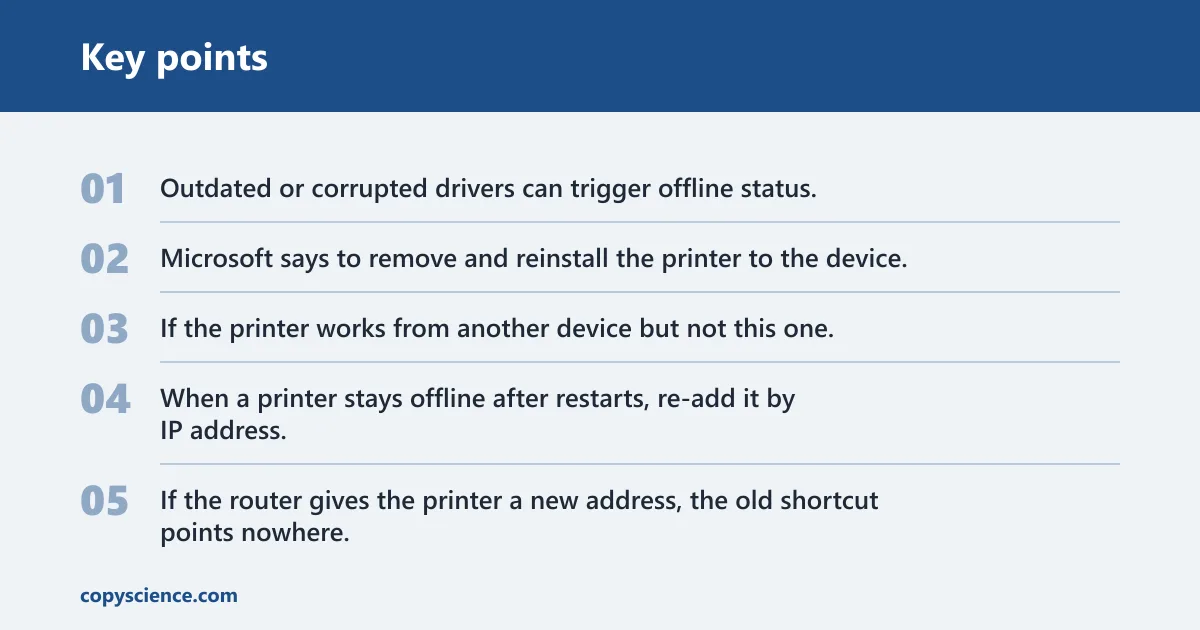
Outdated or corrupted drivers can trigger offline status. Microsoft says to remove and reinstall the printer to the device, and a manufacturer website is a common source for current drivers. If the printer works from another device but not this one, driver work is a strong next step.
Re-add the printer by IP address
When a printer stays offline after restarts, re-add it by IP address. If the router gives the printer a new address, the old shortcut points nowhere. Re-adding the printer with the current IP can restore communication without changing the hardware.
Suppose a home office printer worked all week, then went offline after the router rebooted on Sunday night. The printer panel still shows connected. In that case, check whether the IP address changed, then add the printer by the new address instead of reusing the old entry.
Use a static IP for repeat offline loops
If the printer keeps going offline after DHCP renewals, a static IP can stop the cycle. That keeps the printer at one known address so Windows, Mac, and shared-office workstations do not keep chasing a changing target. This is especially useful when the same printer serves several devices.
Why does Windows show the printer offline?
Windows often shows a printer offline when it is really routing jobs to the wrong place, holding a stuck queue, or pointing at an old device entry. The printer can be powered on and visible on Wi-Fi, yet Windows still treats it as unavailable if the default printer or port data is wrong.
Default printer routing problems
Microsoft says to set the printer as the default printer. If Windows keeps managing the default on its own, jobs may go to a different printer or a dead entry. That creates a false offline warning even when the target printer is fine.
When the queue is clear but status stays offline
If the queue is empty and the status still says offline, move from queue checks to the device path. Restart the Print Spooler, verify the Wi-Fi network name, then re-add the printer by IP if needed. If it is wired, check the cable path instead of chasing Wi-Fi settings.
Frequently asked questions
Why does my printer say offline when it is connected?
That usually means the operating system cannot communicate with the printer, even though the printer is on and connected to Wi‑Fi or a cable. The common causes are a network mismatch, a stuck print queue, an IP change, or a driver problem on the device that is printing.
How do I get my printer back online when it says offline?
Start with the fastest layer: confirm the same Wi‑Fi network name, clear the queue, restart the printer and router, and then restart the Print Spooler on Windows. If the printer still shows offline, re-add it by IP address and reinstall the driver if needed.
Should my printer and computer be on the same Wi‑Fi network?
Yes. Microsoft says the printer and device should be on the same Wi‑Fi network. A printer on 2.4 GHz and a laptop on another SSID, guest network, or isolated band can appear connected but still be unreachable from that device.
How do I restart the print spooler to fix an offline printer?
Open Services on Windows, find Print Spooler, and restart it. Microsoft recommends restarting the Print Spooler service when the queue or status is stuck. If the service restarts but the printer still reads offline, clear the queue and check the printer’s IP address.
How do I re-add a printer by IP address when it stays offline?
Find the printer’s current IP address on the printer panel or network page, remove the old printer entry, and add the device again using that address. This is the right move when the printer changed IP after a router restart or DHCP renewal.
What should I check first if my printer says offline but is connected?
Check the exact Wi‑Fi network name, the printer’s power state, and the cable seat if it is wired. Then clear the queue and confirm the router is up. If only one device has the problem, focus on that device’s default printer, driver, or network path first.