
Copy machine vs printer: What functions can each one do?

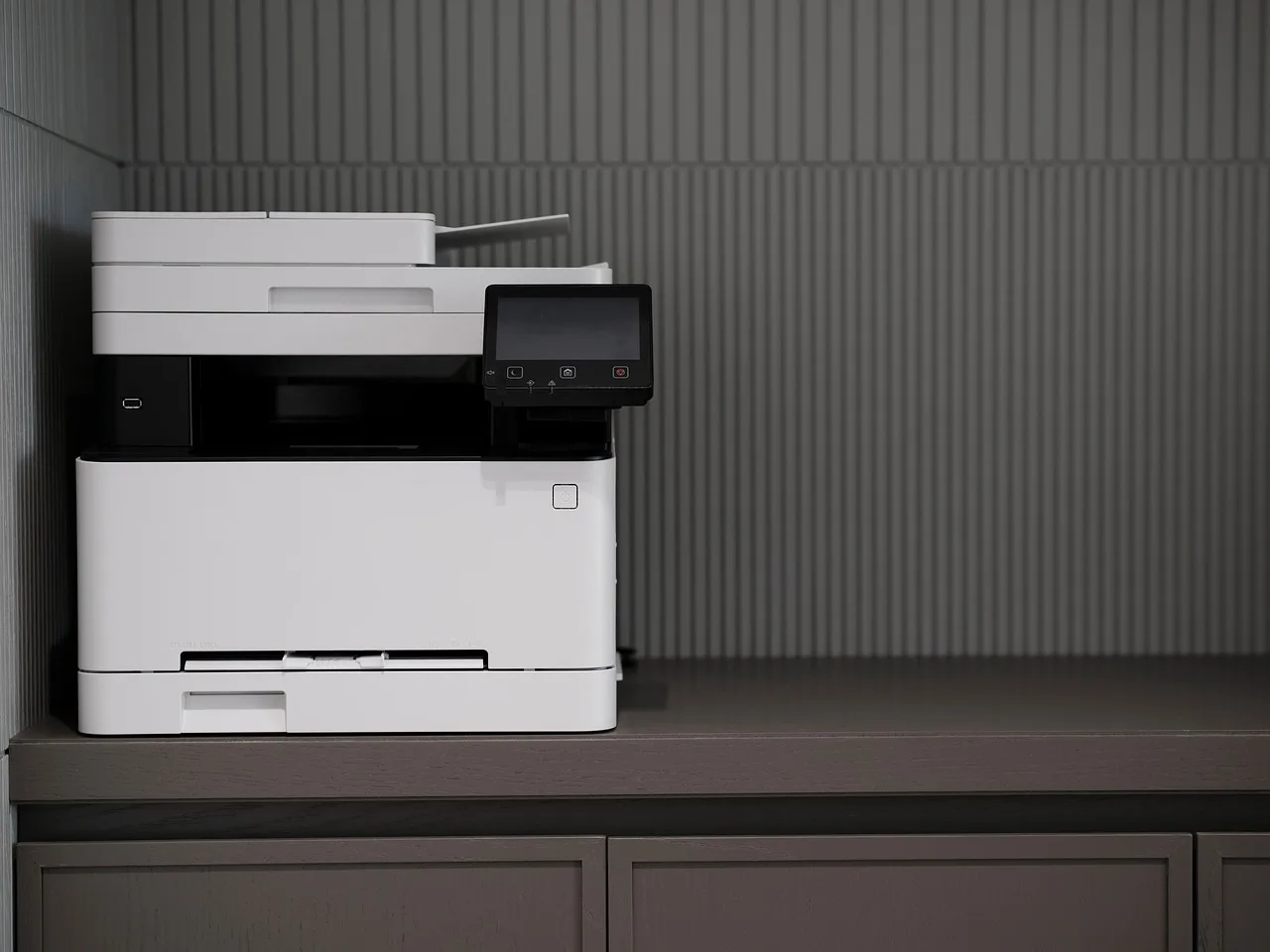
A printer puts digital files on paper. A copier duplicates a physical page. A multifunction device can print, copy, scan, and sometimes fax. If your workflow starts with a file on a screen, a printer fits. If it starts with paper, a copier fits. This guide maps each function, shows which tasks need a scanner, ADF, fax line, or network connection, and helps you choose the right machine.
| Decision factor | Copy machine | printer | Winner |
|---|---|---|---|
| Primary input | Physical original on glass or in the feeder | Digital file from a computer, phone, tablet, or network | tie |
| Best at making duplicates | Yes; copying is its core job | No, unless it is an MFP with copy hardware and copy firmware | Copy machine |
| Direct printing from phone or laptop | Only on models that also act as printers | Yes; that is its main function | printer |
| Scan, fax, and cloud workflow | Common on copier-class MFPs, rare on basic standalone units | Possible on some MFP printers, absent on basic printers | Copy machine |
| Home photo and borderless output | Usually not the main strength | Common on inkjet printers | printer |
| Higher-volume copy jobs | Built for that kind of load | Usually slower and lighter-duty; typical printer speed in one comparison is 20–40 ppm | Copy machine |
Printer vs copier: the basic difference
The split is simple. A printer starts with a digital file, while a copier starts with a physical page. That difference matters because a printer can copy only if it has scanner hardware and copy controls built in; a basic printer cannot duplicate paper on its own.
What a printer can do from a digital file
A printer takes a digital document and puts it on paper. That file can come from a laptop, phone, tablet, USB drive, or networked app, depending on the model. Many home printers are inkjet units; office printers are often laser models that use toner, a drum, and a fuser.
What a copier can do from a physical original
A copier reproduces a physical document placed on the glass or in the feeder. Its core technology is xerography, which uses toner, a drum, and a fuser to duplicate the page. That is why the copy function is built around a scanner path rather than a file path.
Where the two overlap in MFPs
Modern MFPs can print, copy, scan, fax, and connect to cloud services. Some MFPs support scanning to email, USB drives, and cloud-based services. That overlap is where many home and small-office buyers land, because one device can cover several workflows.
How each machine makes a page
Both laser printers and copiers use toner, a drum, and a fuser, but they start from different inputs. A copier reads the light and dark areas of a physical original, while a laser printer draws the image directly onto the drum from digital data sent to the printer.
Xerography in copiers
Xerography is the dry electrostatic copy process used by copiers. The page is scanned, the drum is charged, toner transfers to the image area, and the fuser bonds that toner to paper. That sequence is the heart of copier function.
Laser printing and the shared toner path
Laser printing uses the same broad toner path, but the image source is digital. The printer receives the file over USB or network, then builds the page on the drum from that data. The output path looks similar to a copier, but the input source is different.
Where inkjet fits
Inkjet printing is a different print technology from toner-based systems. It sprays liquid ink rather than using toner and a fuser. That is why inkjet printers are often associated with color images and photos, while copier-class devices lean on toner workflows.
Copy machine function matrix
The matrix below maps common home tasks to the device that actually supports them. It also shows where you need a scanner glass, an automatic document feeder (ADF), or a network connection. A common first-timer mistake is assuming every printer with a print button can also duplicate a paper original.
| Home task | Copy machine | printer | MFP | What the task needs |
|---|---|---|---|---|
| Print from phone | Only if it is also a printer-class device | Yes | Yes | Wi-Fi, network, or direct print support |
| Copy one page | Yes | No on a basic printer | Yes | Scanner glass or feeder |
| Copy multiple pages with ADF | Yes | No on a basic printer | Yes | ADF |
| Scan to PDF | Yes on many copier-class MFPs | Usually no on a basic printer | Yes | Scanner and scan software |
| Fax | Yes on many copier-class systems | Usually no on a basic printer | Yes on some models | Fax hardware and line or network fax feature |
| Duplex copy | Yes on supported models | No on a basic printer | Yes on supported models | Duplex scan or duplex copy function |
| Enlarge or reduce | Yes | No on a basic printer | Yes | Copy controls |
| Borderless photo printing | Usually not the main use | Yes on many inkjet printers | Sometimes, but less common | Photo-capable print engine and paper support |
What needs a scanner glass or ADF
Any task that starts with a physical page needs scanning hardware. One page can go on the glass. Several pages are easier through the ADF, which feeds sheets one after another without you lifting each page back onto the bed.
What can run over Wi-Fi or USB?
Printing from a phone or laptop can run over Wi-Fi, USB, or a network connection. Copying does not rely on that path. The machine can make a copy locally if the scanner and copy controls are present, even when the computer is off.
Can a printer copy without a computer?
Yes, but only if the machine is more than a basic printer. A printer can copy on its own when it includes a scanner glass or ADF plus firmware support for copy mode. Wi-Fi is not the same thing as copy support, and a network connection does not add a copy function by itself.
When a printer can copy on its own
If the device has a copy button, a scanner path, and a display or menu for copy settings, it can usually make local copies without a computer. That is common on MFPs and some printer-scanner combos.
Why some printers print but cannot copy
Many printers are built only for digital output. They can receive a file and print it well, yet they have no scanner unit, no copy mode, and no way to read a paper original. In that case, the printer works exactly as designed and still cannot duplicate a page.
Wi-Fi is not the same as copy support
Wireless setup helps with printing from a phone or laptop. It does not create a copy function. If the scanner hardware is missing, the device may still print over Wi-Fi while failing every copy request.
What can a copier do that a printer cannot?
A copy machine handles physical originals first, and that gives it a clear edge for duplicate-page work. It can copy one sheet or many, adjust size, and often move pages through an ADF. Copier-class devices also tend to include finishing options that basic printers do not.
High-volume copy workflows
Typical copier or MFP speed in one comparison is 30–100+ ppm, which puts it in a different class from many desktop printers. That matters when you need repeated copying, batches of forms, or a stack of handouts without stopping after every page.
Finishing options and feeder features
More advanced models can include stapling, hole punching, sorting, and booklet making. Those functions are aimed at document handling after the page is made, not at digital printing from a laptop. They are more common on copier-class systems than on small home printers.
Copy-first controls that basic printers lack
Copy mode usually includes enlargement, reduction, duplex copy, contrast, and multiple-copy count. A basic printer has print settings, but those settings do not replace copy controls for paper originals.
What can a printer do that a copier cannot?
A printer is stronger when the source is digital, especially for phone and laptop jobs. It is also the better fit for borderless photo printing and many home color tasks. A copier may include print functions on an MFP, but a print-first device usually handles digital input more naturally.
Direct printing from phone or laptop
A printer’s primary input is a digital file over network or USB. That makes it the simplest choice for documents in email, cloud storage, or office apps. If your workflow starts on a screen, printer logic fits better than copy logic.
Borderless photo output
Borderless photo printing is often available on inkjet printers. That matters for postcards, photo sheets, and other home print jobs where edge-to-edge output is useful. Copier-class devices are built around document duplication, not photo finishing.
Why some printer functions stop at print only
Some printers never move beyond digital output. They may print a file, but they cannot scan, fax, or duplicate a physical page. That is the key boundary to check before you buy.
Why won’t my printer copy but still prints documents?
The usual reason is simple: the device prints, but it does not have working copy hardware or copy mode. A printer can still send digital files to paper while failing to copy a physical page. That can happen because the scanner unit is missing, disabled, misconfigured, or not detected.
Likely causes
- No scanner glass, scanner sensor, or copy firmware in the device.
- ADF jam or lid open, which blocks copy initiation on some models.
- Copy mode disabled in the menu or in device settings.
- Network-only setup that lets you print from devices but not use local copy controls as expected.
- Scan hardware fault, even though the print engine still works.
Quick checks
- Look for a Copy or Scan/Copy button on the control panel.
- Open the lid and check whether a flatbed scanner glass is present.
- Check the ADF for a jam, a stuck page, or an open cover.
- Try a one-page copy from the glass before testing the feeder.
- Restart the device and recheck the menu for copy mode.
When the scanner hardware is the issue
If the printer still prints but every copy attempt fails, the scanner side may be down. That points to hardware, not Wi-Fi. In that case, the print engine can keep working while the copy path stays broken.
Which machine fits occasional home copies?
If you only need occasional copies at home, a basic printer is enough only when you do not need to duplicate paper originals. If your home workflow includes forms, school pages, or receipts, an MFP is usually the better middle ground. A copier-class device makes sense only when copying volume is real and frequent.
When a basic printer is enough
Choose a printer when most jobs are digital and copy needs are rare or absent. For example, if you print shipping labels, school worksheets, or a few color pages from a laptop, printer-first hardware keeps the setup simple.
When an MFP makes more sense
Choose an MFP if you want print, copy, and scan in one box. That covers scan to PDF, scan to email, and often scan to cloud, which are common on many MFPs. A desktop MFP is a practical choice for mixed home tasks with light copying.
When a copier-class device is the better fit
Choose a copier-class machine if your copy jobs are frequent, multi-page, or shared among several people. That is also the better fit if you want finishing features such as stapling or booklet making. Typical copier purchase price in one comparison is $4,000–$8,000, so this path only makes sense when the workflow justifies it.
Choose Copy machine if…
Choose Copy machine if your main task starts with paper. It is the better pick for copying one page, running a stack through an ADF, enlarging or reducing originals, and handling higher-volume copy jobs. It is also the stronger fit if you want copier-class finishing or shared document workflows.
Choose Copy machine if your day includes physical originals
Use this option when you need the machine to read a page first and output duplicates after. That includes forms, handouts, IDs, and multi-page packets that should stay in paper form.
Choose printer if…
Choose printer if your work begins as a digital file and stays there until output time. It is the better pick for print from phone, laptop documents, borderless photos, and lighter home use. Typical printer speed in one comparison is 20–40 ppm, and desktop printer typical purchase price is listed as $200–$1,500.
Choose printer if your workflow is mostly digital
Use this option when you send files straight to paper and rarely need to duplicate a physical page. If you need copy functions later, look for an MFP rather than a basic printer.
Frequently asked questions
Can a printer copy without a computer connected?
Only if it has built-in copy hardware and copy mode. A basic printer can print without a computer if a job is already queued or sent wirelessly, but it still cannot copy a paper original unless it includes a scanner glass or feeder plus copy controls.
How do you use the copier on a printer?
Place the original on the scanner glass or in the ADF, then press the Copy button or choose Copy from the screen. Set quantity, size, and duplex options if available, then start. If there is no scan path or Copy menu, the printer does not support copying.
Can a printer make copies from the glass without being connected to Wi-Fi?
Yes, if it is an MFP or a printer with local copy functions. Copying from the glass does not depend on Wi-Fi. The machine reads the physical page directly; the network only matters for sending digital files to the printer.
What functions does a copier have that a printer doesn’t?
A copier can duplicate physical originals, often from the glass or ADF, and it may include enlargement, reduction, duplex copy, stapling, sorting, hole punching, and booklet making. Basic printers generally do not have those copy-first controls or finishing tools.
Do you need a copier to scan, fax, or email documents?
No. An MFP can usually handle those tasks, and many copier-class devices include them too. Scan to email, USB, and cloud-based services are common on many MFPs, but they are rare or missing on basic standalone printers and copiers without MFP features.
Is a multifunction printer the same as a copier?
Not exactly. A copier is centered on duplicating physical pages, while an MFP combines print, copy, scan, and sometimes fax in one device. Many office models blur the line, but the function map is still different: copier-first versus mixed workflow.
